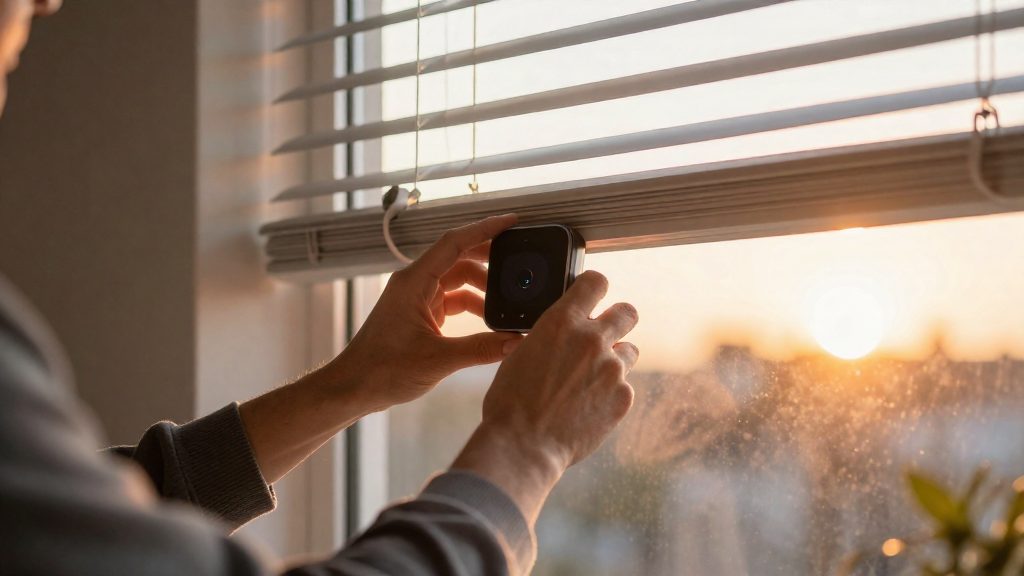
Can Google Home close blinds at sunset?
Yes. Google Home can close blinds at sunset. A household automation can start from a sunrise or sunset schedule and run a window covering action that closes the blinds, so no separate timer is needed. Whether a specific blind responds depends on its make and model.
Sunset schedule starter
Google Home automations support a sunrise and sunset schedule starter, written in the app as “After sunset…”. This is the trigger that fires the automation at sunset. In the script editor, a time.schedule starter with at: SUNSET is also valid, so both editors can use sunset as a trigger.
Open and close action
Window covering open and close action is a supported automation action. Google’s example is “open the blinds in the bedroom”, which means the same action can be set to close the blinds at sunset. Google’s help page does not list setting a specific position, so the documentation does not show a way to stop the blinds at a set height in a plain Google Home automation; position control is not documented there. In the script editor, the blind is controlled with the device.command.OpenClose action, where openPercent: 0 means closed.
Open or closed state as a condition
The window covering state (open or closed) can also serve as a starter or a condition. This lets other automations check whether the blinds are already closed before they run.
| Automation element | Supported in Google Home | Notes |
|---|---|---|
| Sunrise and sunset schedule starter | Yes | Starter such as “After sunset…” |
| Window covering open or close action | Yes | Example: “open the blinds in the bedroom” |
| Window covering state as starter or condition | Yes | Open or closed state |
Script editor time.schedule with at: SUNSET |
Valid | Requires the script editor |
| Specific blind position in the Google Home action | Not listed | Use openPercent in the script editor |
Google’s developer examples use SUNSET and SUNRISE inside a time.between condition for a blind. They do not include a sunset-triggered blind closing example, so a sunset close needs to be assembled from the starter and action above.
Compatibility and conflicts
Not every device supports every starter, condition or action, and third-party compatibility varies. Check the manufacturer’s manual or the device’s listing in the Google Home app before building the automation.
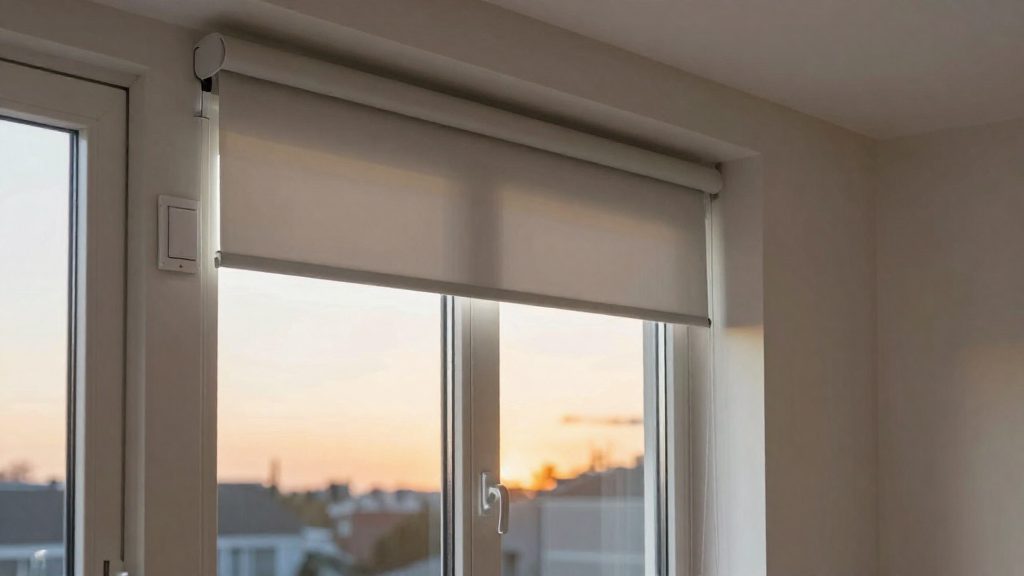
What you need before you start
Three checks come before you build a sunset automation: a valid home address in the Google Home app, the correct automation type, and confirmed support for the blinds’ open and close actions. Skipping them can leave an automation saved but unusable.
Home address
Google lists a missing home address among the common causes of automations saved with errors. An automation with errors can be saved, but it stays inactive until the error is fixed (Google Home Help, 2026). Confirm the address in the Google Home app before creating the automation, so that a sunset trigger is not saved in an inactive state.
Household automation or Personal Routine
The sunrise/sunset starter and the window covering action apply to household automations. They do not apply to Personal Routines (Google Home Help, 2026). Create the automation as a household automation from the start.
Google also notes that the new features may be unavailable in automations made with the previous automation editor or the script editor (Google Home Help, 2026). If an older automation for your blinds was built in one of those editors, rebuild it in the current editor instead of editing it.
| Check | What to confirm | Why it matters |
|---|---|---|
| Home address | Address is set in the Google Home app | Missing address causes automation errors |
| Automation type | Household automation, not Personal Routine | Sunset starter and blind actions are household-only |
| Editor | Current automation editor; the script editor supports only the documented script syntax | Newer features may be unavailable in the previous or script editors |
Blind manufacturer manual
Check the manufacturer’s manual for:
- Whether the blind responds to open and close commands from Google Home.
- Whether it reports its open or closed state, which is needed if the state is used as a starter or condition.
- Whether it supports partial positions, since Google’s page does not confirm this.
How to build the sunset blinds automation
Build this as a household automation rather than a Personal Routine. In the Google Home app, open Automations and use Add to create a new one. The build has three parts: a sunset starter, a close action for each blind, and a save.
Step 1: Add a sunset starter
Select a sunrise/sunset starter so the automation triggers relative to sunset instead of a fixed clock time. Google’s examples use wording such as “After sunset…” (Google Home Help, 2026). Because the starter tracks sunset, the blinds close at a time that changes with the season rather than at one set time.
Step 2: Set the close action per room
Add a window covering action for each blind, choosing the blind by its room so the automation stays readable when you add more blinds later.
Step 3: Compare the two build routes
| Route | Starter | Close action |
|---|---|---|
| Automations editor (household) | Sunrise/sunset starter, such as “After sunset…” | Close window coverings in the room |
| Script editor | time.schedule with at: SUNSET | device.command.OpenClose with openPercent: 0 (0 means closed) |
The script route follows Google Home Developers’ documentation (2026).
Step 4: Group several blinds in one automation
Put every blind you want closed at sunset into the same automation, each with its own close action. Keep the blinds’ close actions separate from any other automation that opens the same blinds at the same time.
Can you offset the time from sunset?
Yes. Google Home automations support a delay or offset starter in addition to the sunrise/sunset schedule starter, so a blind can close a set interval after sunset instead of at the sunset moment itself. The documented example is “Ten minutes after sunset…”, which runs the automation ten minutes after the sunset time. According to Google Home Help (2026), these starters are available for household automations.
Starter phrasing
The wording of the starter determines when the automation runs:
| Starter phrasing | Timing | Starter type |
|---|---|---|
| “After sunset…” | At sunset | Schedule starter |
| “Ten minutes after sunset…” | Ten minutes after sunset | Delay starter |
The delay starter is a fixed interval added to the sunset time, so you choose the interval once when you build the automation.
Choosing a fixed offset for closing
- Set the fixed offset according to when the room needs to be dark. A short offset closes the blind soon after sunset; a longer one keeps it open into the evening.
- Google’s help page does not state a minimum or maximum offset, so use the values the editor accepts.
- Read the starter text in the summary before saving to confirm the interval and the sunset reference.
Combining the offset starter with a close action
Pair the delay starter with the close action to produce a delayed close at a fixed time relative to sunset.
Limits
- Script editor. Google says newer automation features may not be available in the script editor, so build the offset starter described above in the household automation editor.
Add conditions so blinds don’t close at the wrong time
A sunset starter fires at the same moment every evening, regardless of whether the blinds are already closed, partly closed, or closed by hand. Conditions let an automation check a device or time value before it runs. Time-based conditions can also limit when the automation is allowed to act at all.
Block closure with a device state check
Use the window covering state as a condition so the close action runs only when the blinds are open:
- Open the automation and select the sunset starter.
- Add a condition based on the blind’s state, and choose the open state.
- Set the action to close the blind.
If the blind reports that it is already closed when sunset arrives, the condition should stop the automation from running; confirm this by testing.
Verify each condition before saving
Test each condition against the situation it is meant to handle:
| Condition | What to confirm before saving |
|---|---|
| Blind state is open | The blind reports an open state in the Google Home app, and the automation skips when it is already closed |
| Blind state is closed | The automation skips closing, and the blind does not move on its own |
| Time window is set | The window matches the times you expect the automation to run |
Before tapping Save, review the full automation.
Avoid conditions that contradict the sunset starter
A condition can cancel out the starter. For example, a script-editor condition using time.between with SUNRISE and SUNSET to limit the automation to daytime is false at the moment sunset occurs. The same applies to an offset starter such as “Ten minutes after sunset,” because the condition is still false ten minutes later. The automation then never runs, even though it appears correct.
Why didn’t my blinds close at sunset?
A sunset closure usually fails for one of three reasons: the automation never became active, the blinds could not receive the command, or the blinds were already in the state the automation was meant to produce. Check these three areas in order, because an inactive automation makes the other two irrelevant.
| Symptom | Likely cause | What to check |
|---|---|---|
| Automation shows as inactive | Errors prevent activation | Open the automation, fix the listed errors, and save again |
| Blinds don’t move at sunset | Device is offline or unreachable | Device status in the Google Home app and the manufacturer’s connection requirements |
| Automation runs but blinds do not change | Blinds were already closed, or a condition does not match their real state | Open/closed state just before sunset and any condition in the automation |
| Starter or action missing | Automation built in an older editor | Whether it was made with the previous automation editor or script editor |
Inactive automations
Common causes include devices that have not been added to the home and permissions that have not been granted. Confirm that the blinds appear as added to the home and that the automation is shown as active.
Offline blinds
An offline device cannot execute the close action at trigger time, even when the automation is active. Confirm in the app that the blinds respond to a manual open or close command before the sunset time.
State mismatch at trigger
A state mismatch occurs when the blinds’ open/closed state at the trigger does not match what the automation expects. If the blinds are already closed when sunset arrives, the close action has nothing to change. If a condition checks for an open state that the blinds no longer have, the automation will not run as expected. Check the blinds’ state immediately before sunset and compare it with the logic in the automation.
Using Help me create and the script editor
You can build a sunset blind automation in two ways: with Help me create in the Google Home app, or in the script editor. Help me create needs no code but has stricter eligibility rules. The script editor exposes a sunset trigger through its own syntax, but Google’s help documentation says newer automation features may not be available in scripts. The two routes differ in who can use them, how the automation is written, and which sunset features each one exposes.
Help me create: requirements and navigation
Help me create builds an automation from a plain-language description. According to Google Home Help (2026), it requires:
- A Google Home Premium subscription
- A home admin account, not a minor’s account
- English, in the US
To open it, go to Add > Automations > Help me create.
Script editor: what it supports
According to Google Home Developers (2026), the script editor accepts a time.schedule starter with at: SUNSET.
Comparison
| Criterion | Help me create | Script editor |
|---|---|---|
| Input | Plain-language description | Script syntax |
| Sunset trigger | Sunrise/sunset schedule starter, such as “After sunset…” | time.schedule with at: SUNSET |
| Blind action | Opening or closing window coverings | device.command.OpenClose, openPercent: 0 closed |
| Eligibility | Premium, home admin, not a minor | Not limited by subscription in the sources |
| Region and language | English, US | Not restricted in the sources |
If a feature you need is missing from the script editor, use Help me create or the standard editor instead.
Avoid conflicting automations
Google advises avoiding conflicting automations, such as one that opens the blinds and another that closes them at the same time (Google Home Help, 2026). Conflicts usually come from automations created separately over time and never reviewed together. Fixing them means finding every automation that controls the same blinds, identifying which ones overlap, and keeping a single schedule for each blind.
Opening and closing automations firing at the same time
A conflict occurs when an open action and a close action share a trigger time. Google Home supports sunrise/sunset schedules and offset starters, such as “Ten minutes after sunset.” Two automations can still work against each other without sharing an exact trigger: if one closes “After sunset” and another opens “Ten minutes after sunset,” the blind closes and then reopens minutes later. Check the starter of each automation, not only its name.
| Pattern | Example | Risk |
|---|---|---|
| Same trigger, opposite actions | Close “After sunset” and open “After sunset” | Both commands arrive at the same moment |
| Offset overlap | Close “After sunset” and open “Ten minutes after sunset” | Commands run minutes apart, so the blind moves twice |
Auditing automations that target the same blinds
Go through each automation in the Google Home app and record three things: the blinds it controls, its starter, and its action.
Merging duplicate schedules into one automation
Once the audit shows two automations doing the same job on the same blind, keep one and remove the other. Keep one close automation for the sunset event, with one close action per blind, and remove duplicates that control the same blinds. Consolidating schedules this way leaves one close command per blind instead of two competing commands.
Frequently asked questions
Do I need the script editor to close blinds at sunset?
No. Google Home’s household automations include a sunrise and sunset starter, such as “After sunset…”, which works without the script editor. The script editor is only needed if you want the time.schedule starter with at: SUNSET and the OpenClose action with openPercent: 0. Google Home Help (2026) notes that the newer automation features may not appear in automations made with the older editor or the script editor.
Can the blinds close a few minutes after sunset instead of exactly at sunset?
Yes. Google Home Help (2026) lists a delay (offset) starter that fires a set time after sunrise or sunset, for example “Ten minutes after sunset…”. Use this when you want the blinds to close after the sky has darkened rather than at the exact moment of sunset.
Why might a sunset blind automation save but never run?
An automation with errors can be saved but stays inactive until the error is fixed. According to Google Home Help (2026), common causes are a missing home address, devices that have not been added to the home, and permissions that have not been granted. Also avoid a second automation that opens the same blinds at the same time, since Google advises against conflicting automations.