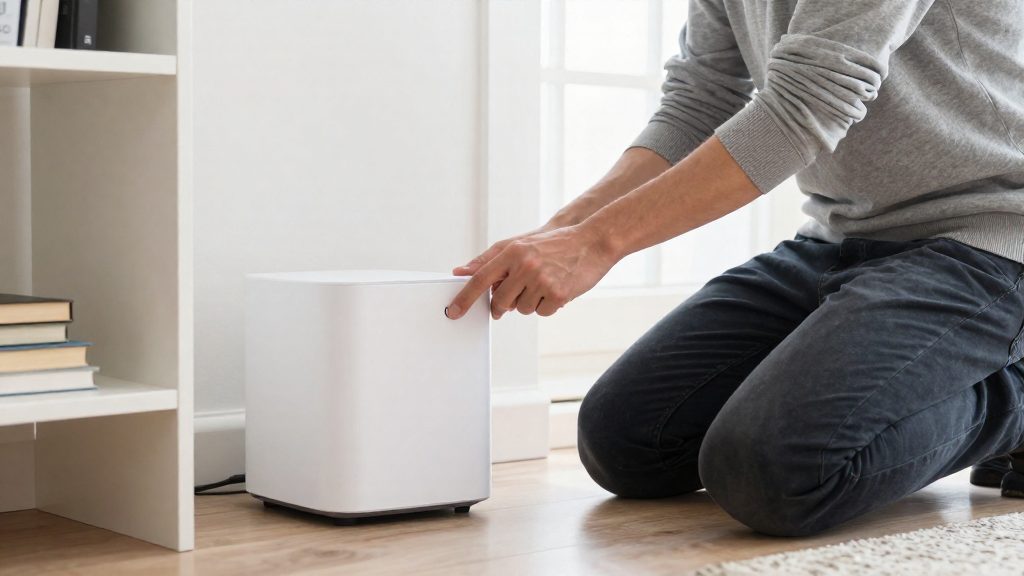
A SmartThings hub’s factory reset erases device connections and all settings, so it must be set up again from scratch. Before starting, confirm the exact model and firmware version, delete devices, automations, scenes and SmartApps from the app if the firmware is below 17.11, and record your Wi-Fi details and device list. Anything not recorded beforehand has to be rebuilt by hand, and on older firmware, skipping the app cleanup can leave stale entries behind.
Before you reset a smart home hub
Identify the exact model and firmware version
Reset procedures differ by model, so confirm which hub you have before following any instructions. Samsung’s support pages cover these SmartThings-branded hubs:
| Hub | Reset path (per Samsung US Support, 2026) | Check before starting |
|---|---|---|
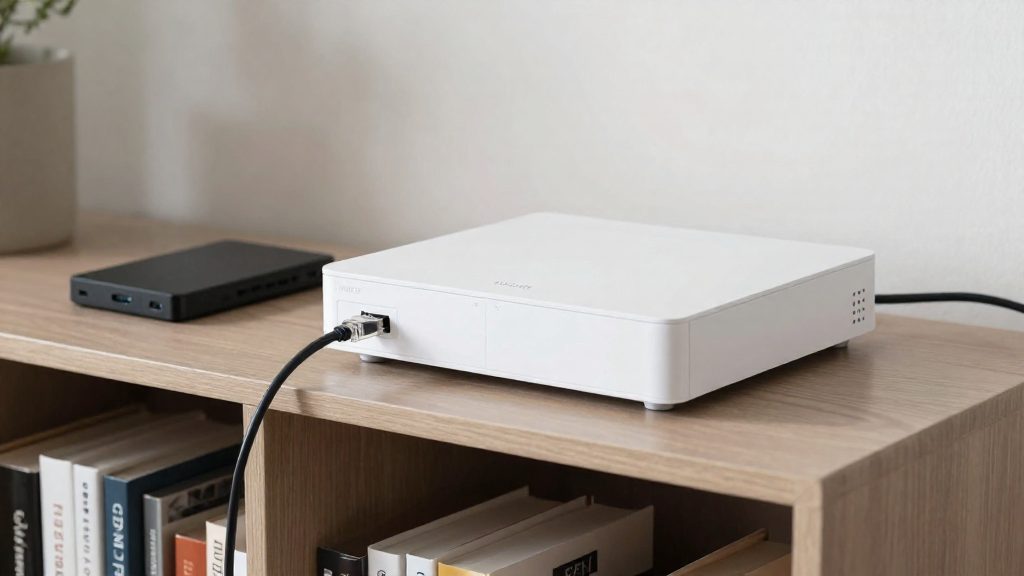
| SmartThings Hub v2 | Hardware button on the back | Power and Ethernet must stay connected |
| 2018 SmartThings Hub | Hardware RESET pinhole | Power cable must be unplugged first |
| Connect Home | Hardware RESET with a small tool | Power-cycle the unit first |
| SmartThings Wifi | Reset from the app | You must still be signed in to the app |
Read the model name on the hub’s label and compare it with this table. Then open the SmartThings app and note the firmware version shown in the hub’s details. The firmware version determines whether the app cleanup in the next step is required.
Delete devices, automations and scenes on firmware below 17.11
On firmware below 17.11, Samsung’s guidance is to delete all devices, automations, scenes, SmartApps and locations in the app before resetting (Samsung US Support, 2026). Remove items in this order:
- Automations and scenes first, so no rule still references a device you are about to delete.
- Devices, one by one from the hub’s device list.
- SmartApps, the integrations linked to the location.
- Locations last, since the location holds the other entries.
Firmware 17.11 and later is outside this requirement, but it is still worth reviewing automations before a reset, because settings are erased either way.
Record the Wi-Fi details and device list
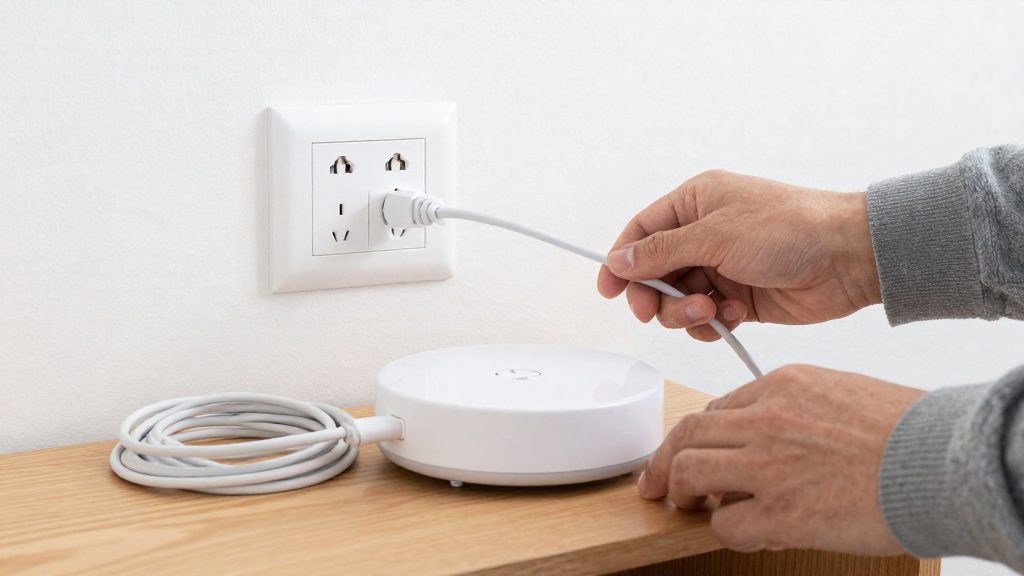
A factory reset erases all data, including device connections and all settings (Samsung US Support, 2026). Write down the following before you start:
- Wi-Fi network name and password, if your model connects over Wi-Fi (such as SmartThings Wifi). The reset clears saved settings and preferences (support.com Tech Solutions, 2026), so the password will not be available from the hub afterwards.
- Connection type for each hub: Ethernet for the SmartThings Hub v2 and Wi-Fi for SmartThings Wifi.
- Device list with each device’s name, room and type, so re-entry takes less time.
- Automations and scenes, with the trigger, condition and action of each one.
What does a factory reset erase?
| Stored item | Effect of a factory reset | Source |
|---|---|---|
| Device connections (local device pairings) | Erased | Samsung US Support (2026) |
| Automations, scenes and routines saved on the hub | Erased as part of all data | Samsung US Support (2026) |
| Settings and preferences (hub-side configuration) | Erased, returning the hub to its unconfigured state | Samsung US Support (2026); support.com Tech Solutions (2026) |
Device connections are the most consequential loss. The hub no longer keeps a record of the devices it had paired, so any sensor, plug or light that relied on that record stops being controlled through the hub until the hub is configured again.
How do you reset a SmartThings hub?
SmartThings hubs use different reset methods depending on the model. The hardware reset is performed on the device itself, using a button or pinhole on the hub’s body, and differs for each generation. Before you start, check which model you have, because the button, power state and release point are not the same across models.
| Hub | Power and connection state | Reset control | Action | Release point |
|---|---|---|---|---|
| SmartThings Hub v2 | Powered on | Red button on the back | Hold for 30 seconds | Release when the LED turns solid yellow |
| 2018 SmartThings Hub | Unplugged from power | RESET hole, pressed with a pin | Hold while plugging the power cable back in | Release when the LED changes from flashing to solid yellow |
| Connect Home | Power-cycled | RESET button, pressed with a small tool | Press and hold | Hold until the LED turns off |
SmartThings Hub v2: Press and hold the red button on the back for 30 seconds, then release it when the LED turns solid yellow.
2018 SmartThings Hub: Unplug the power cable. Hold the RESET button with a pin, then plug the power cable back in while still holding it. Release the button as soon as the LED changes from flashing to solid yellow.
Connect Home: Power-cycle the unit first. Then press the RESET button with a small tool and keep it pressed until the LED turns off.
Home Assistant and Hubitat: no single reset procedure
Home Assistant and Hubitat do not share a single reset procedure. The right path depends on how the platform is installed and, for Hubitat, on which hub model you own. Because these platforms are open and updated often, treat any steps you find in older guides with caution and confirm them against the current vendor or project documentation before you act.
For Home Assistant, the reset method follows the installation type: a dedicated hardware appliance, a virtual machine, a container, or a Linux package on an existing system. Each type stores its configuration differently, so a reset that clears one installation may leave another untouched. Identify your installation type first, then follow the reset or reinstall procedure published by the Home Assistant project for that type.
For Hubitat, the procedure varies by hub model. Locate the model name on the hub label or in the Hubitat web interface, then check Hubitat’s documentation for that specific model. Firmware steps can change between releases, so use the documentation that matches your current firmware version.
Before any reset on either platform:
- Note which devices are paired through which protocol, since they will need to be added again.
- Confirm that you can reach the hub’s local interface or have the credentials you need to set it up again.
How long does a hub reset take?
A SmartThings Hub v2 factory reset takes 10 to 15 minutes from start to finish, according to support.com Tech Solutions (2026). The reset is complete when the hub’s LEDs turn solid green.
The 10-to-15-minute window is specific to the Hub v2. Reset times are not uniform across the smart home market, and the figure does not transfer to other hubs. The 2018 SmartThings Hub and the SmartThings Wifi and Connect Home models use different reset methods and LED behaviour, and the sources cited here do not give a completion time for them. For any other brand, check the manufacturer’s documentation for the expected duration and the exact LED sequence.
Use the LED to decide when the process is finished, not the clock alone:
- Hub v2: the reset is finished when the LEDs turn solid green. Solid green is the completion signal, and the 10-to-15-minute range is the typical length of time it takes to reach it.
- 2018 SmartThings Hub: Samsung US Support (2026) does not describe a green completion state for this model.
What should you do after the reset?
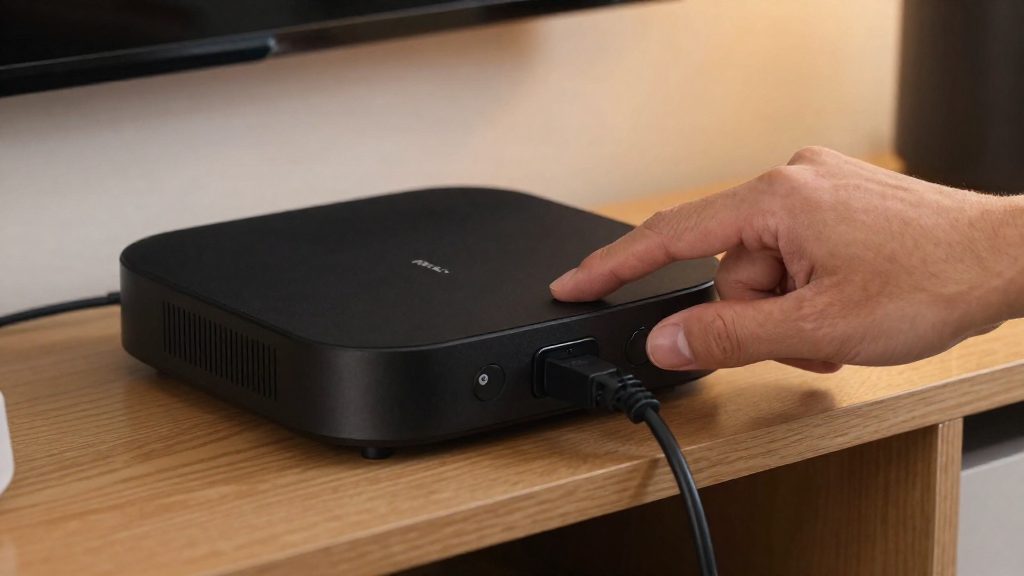
Once the hub is blank, you rebuild its network from the ground up. Work in a fixed order: update the firmware first, then re-add devices, re-pair the mesh-based radio devices, rebuild automations, and confirm that everything reports online.
Update firmware before re-pairing
Check for and install any available firmware update before you add a single device. Follow Samsung’s setup guidance in the SmartThings app to set the hub up again.
Re-add devices
Add Wi-Fi and cloud-connected devices through the hub’s app, one at a time. Confirm each device appears in the device list and reports its state before moving to the next. Rename devices at this stage, since automations later refer to these names.
Re-pair Zigbee and Z-Wave nodes
Zigbee and Z-Wave devices join the hub’s own mesh network, so the old pairing is tied to the erased network and cannot be reused. Each device must be included again:
| Protocol | What to do | Why it matters |
|---|---|---|
| Zigbee | Put each bulb, plug, or sensor into pairing mode, then add it in the app | Devices re-join the new network and extend its mesh |
| Z-Wave | Start inclusion on the hub, then trigger inclusion on the device | Locks and switches need an explicit inclusion step |
Re-pair mains-powered devices such as plugs first. They act as routers and strengthen the mesh for battery devices added later.
Rebuild automations and routines
Recreate automations and scenes from scratch rather than expecting them to return. Start with the simplest routines, then add conditions. Test each one manually before relying on it for triggers such as motion or schedules.
Check connectivity
Confirm that every device shows as online, then trigger each automation once to verify the device responds. Devices that appear offline usually need to be re-paired or moved closer to a mains-powered device in the mesh.
Can you reset a hub without the app?
It depends on the model. SmartThings Wifi is documented as resettable only from the app, while several SmartThings hubs with physical buttons can be reset with the hardware alone. If the app is inaccessible, the practical question is whether your hub has a button-based reset. Samsung’s support documentation covers both paths, and the choice depends on the model’s design rather than on the app itself.
App-only reset: SmartThings Wifi
According to Samsung US Support (2026), SmartThings Wifi is reset from the app through Devices > hub > Network status > More options > Factory reset. No hardware reset is listed for this model in that guidance, so if you cannot open the app, that documented route is not available to you. In that case, contact Samsung support rather than trying unlisted button combinations.
Without app access, the pre-reset cleanup cannot be completed, which matters only on firmware below 17.11.
Hardware-only resets
Hubs with a physical reset control can be reset without the app. The method varies by model:
| Model | Reset method without app | Source |
|---|---|---|
| SmartThings Hub v2 | Red button on the back | Samsung US Support (2026) |
| SmartThings Connect Home | Power-cycle, then press RESET with a small tool | Samsung US Support (2026) |
| 2018 SmartThings Hub | Unplug power, hold RESET with a pin while plugging back in | Samsung US Support (2026) |
Confirming a reset without the app
Without the app, the LED is your only status indicator. Use this signal:
- Solid green LEDs on the SmartThings Hub v2 indicate a completed reset.
If the LED does not match this state, contact Samsung support.
Common reset problems
Two documented requirements affect the reset: timing on the 2018 hub, and keeping power and Ethernet connected on the Hub v2. If the steps are followed correctly and the reset still fails, contact Samsung support. The 2018 SmartThings Hub and the SmartThings Hub v2 use different procedures, so their failure modes differ. The 2018 model depends on when you release the button. The Hub v2 depends on keeping both power and Ethernet connected for the whole hold.
The 2018 hub reset does not start
On the 2018 SmartThings Hub, the reset is triggered during power-up. Samsung US Support (2026) notes that a quick release matters: if you keep holding RESET after the LED changes from flashing to solid yellow, the reset may not start.
Fix: unplug the power cable, hold RESET with a pin, plug the cable back in, and release as soon as the LED changes from flashing to solid yellow. If the reset does not start, repeat the full sequence from the unplugged state. Holding the button longer does not correct the timing.
The Hub v2 reset stalls without power or Ethernet
If either cable is loose or disconnected during the hold, the procedure cannot run as documented (Samsung US Support, 2026).
Fix: seat both cables fully before you press the button. Hold the red button for the full 30 seconds and release when the LED turns solid yellow.
Unclear LED patterns
If the LED shows a pattern that does not match the steps above, do not guess at its meaning. Contact Samsung support through its official SmartThings support channels.
| Symptom | Hub model | Likely cause | Fix |
|---|---|---|---|
| Reset does not start | 2018 SmartThings Hub | Button held after the flashing-to-solid-yellow change | Unplug, hold RESET with a pin, plug in, release promptly |
| Hold has no effect | SmartThings Hub v2 | Power or Ethernet disconnected during the hold | Reconnect both cables, then repeat the 30-second hold |
| LED pattern not recognised | Either model | Sequence outside the documented steps | Record the pattern and contact Samsung support |
Frequently asked questions
Will a factory reset delete my devices and settings?
Yes. A SmartThings factory reset removes every device connection and all saved settings, so you will need to run the setup process again in the SmartThings app (Samsung US Support, 2026). On firmware below 17.11, delete devices, automations, scenes, SmartApps and locations in the app before you reset.
How long does a SmartThings Hub v2 reset take, and how do I know it has finished?
Hold the red button on the back for 30 seconds while the hub is connected to power and Ethernet, then release it when the LED turns solid yellow. The reset takes about 10 to 15 minutes and is complete when the solid green LEDs appear (support.com Tech Solutions, 2026).
Do these steps work for a Home Assistant or Hubitat hub?
No. This guide covers only SmartThings hubs. For Home Assistant or Hubitat, follow the reset instructions in the official documentation for your version or installation.