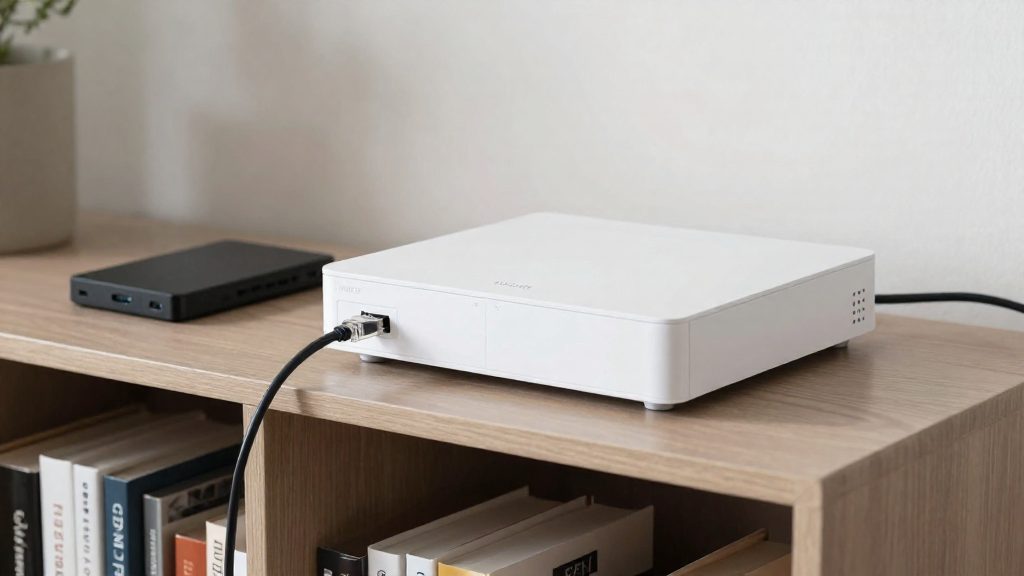
A smart home hub can keep camera footage on-site, but only if it has storage hardware to hold it. Footage can be written to three places: the hub itself, a microSD card inside the camera, or the manufacturer’s cloud service. Which one applies depends on the hub’s storage hardware and on each camera’s storage setting in its app. Hubs without a drive or microSD slot cannot store footage locally, so the cameras must use their own cards or a remote service.
Does a smart home hub store camera footage locally?
The three storage locations
| Location | Where footage is written | What it requires | Example |
|---|---|---|---|
| Smart home hub | Built-in drive or microSD card in the hub | A hub with local storage hardware and the camera set to record to it | Reolink Home Hub (microSD slot); Reolink Home Hub Pro (built-in HDD) |
| Camera microSD | microSD card inside the camera | A compatible card installed in the camera | Any camera with a microSD slot |
| Cloud | The manufacturer’s remote servers | An internet connection and the vendor’s service terms | Check the manufacturer’s instructions for availability and fees |
Local versus cloud retention
Local retention means footage stays on hardware in your home, either in the hub or on a camera’s card. You access it through the hub or the camera, and no remote server holds a copy. Cloud retention means footage is uploaded to the manufacturer’s servers and kept there under the vendor’s terms. The practical difference is where the data physically sits and who controls the storage device.
How the hub decides where footage goes
Storage is not automatic. Each camera has its own setting, so the same hub can receive footage from some cameras and not others. In the Tapo app, the Storage Location option decides whether a camera records to Hub Storage. Hub storage only receives footage from cameras that are configured for it, so verify this for every camera you add.
Checking your setup
- Confirm the hub’s storage hardware in the manufacturer’s specifications: a microSD slot, a built-in drive, or neither.
- For cameras that use their own card, confirm that a microSD card is installed and recognised in the camera’s settings.
- If you need recordings written continuously, check the manufacturer’s instructions for any wired connection requirement.

Hubs that only control devices vs hubs that record
Smart home hubs fall into two functional groups. Control-only hubs relay commands and device state between apps, voice assistants, and smart devices. Recording hubs also receive video from cameras and store it on internal or attached storage. The distinction matters because a hub’s marketing name does not show which group it belongs to, so the product’s storage specifications are the reliable signal.
Control-only hubs: bridges for commands and state
A control-only hub acts as a bridge. It translates between the radio protocol a device uses and the network your app or assistant uses, then passes along commands such as “turn on” and status reports such as “door locked.” Smart plugs, switches, bulbs, thermostats, and sensors typically depend on this role. A bridge of this kind has no reason to hold video, so it has no storage to manage.
Recording hubs: integrated storage
A recording hub receives video from cameras and writes it to internal or attached storage, so storage is what defines this category.
Protocol coverage: Matter, Thread, Zigbee and Z-Wave
Protocol support describes how a hub talks to devices, not whether it records. Matter, Thread, Zigbee, and Z-Wave are control protocols. A gateway that supports them handles device commands and state, and a protocol badge alone does not indicate video capability.
How camera-brand hubs record: Reolink, Tapo and Arlo
Camera-brand hubs store footage in one of two ways: on a drive inside or attached to the hub, or on microSD cards in the cameras. Reolink and Tapo each offer hub-based storage, but their capacities and channel limits differ. Arlo’s local storage depends on the model.
Reolink hub storage capacities
The Reolink Home Hub ships with a 64GB microSD card and accepts up to two 512GB microSD cards. The Home Hub Pro takes a different approach: it has a built-in 2TB HDD that can be expanded to 16TB. Capacity is therefore the main difference between the two Reolink hubs.
Tapo channel limits and Hub Storage
Continuous recording is limited by the number of devices each hub supports:
| Hub | Storage method | Continuous recording limit |
|---|---|---|
| Tapo H200 | Hub Storage | 4 cameras or doorbells |
| Tapo H500 | Hub Storage | 16 cameras |
Before buying, count the cameras and doorbells you plan to connect. A household with more than four cameras and doorbells combined exceeds the H200 limit for continuous recording.
Arlo local storage
Arlo’s local storage options vary by model, so no single rule applies across its range. Check the specification page for your exact Arlo model. Confirm whether it lists a local storage slot or drive and what maximum capacity the manufacturer states. Do not assume a model supports local recording because a sibling model does.
Can Home Assistant record camera footage locally?
Yes, but recording is handled by an add-on, not by Home Assistant’s core software. A network video recorder (NVR) add-on connects to each camera’s video stream, writes the footage to storage you choose, and exposes live views and playback in Home Assistant. Frigate is a common example of this type of add-on in the Home Assistant ecosystem. Because the add-on controls the whole pipeline, the camera, the storage location and the recording settings are all configured on your own hardware.
How the pipeline works
- NVR add-on: reads each camera stream continuously or on events, then saves segments to disk.
- Camera stream: the video source the add-on opens over the local network.
- Storage target: the local disk or network share where the files are written.
- Home Assistant integration: displays live feeds and passes detection events to automations.
Stream sources: RTSP feeds
Most NVR add-ons expect a RTSP (Real Time Streaming Protocol) feed. Setup generally follows these steps:
- Find the camera’s RTSP URL in the manufacturer’s documentation or its web interface. URL formats differ by brand and model, so check the manual rather than guessing.
- Test the URL in a media player on the same network before adding it to the add-on configuration.
- If the camera firmware offers a separate user account, create one for the recorder and use its credentials in the URL instead of the admin login.
- Assign the camera a fixed address through a DHCP reservation in your router, so the stream URL does not change after a restart.
Storage requirements: local disk or NAS mounts
| Storage type | How it attaches | Practical consideration |
|---|---|---|
| Local disk | Physically connected to the machine running Home Assistant | Recording stops if that machine stops |
| NAS mount | A network share (SMB or NFS) mounted into the add-on | Recording stops if the share becomes unreachable |
What happens to local footage during an internet outage?
Whether recording continues during an internet outage depends on the system and on where the footage is written. The Reolink Home Hub keeps recording during an internet outage because it creates a local LAN that the cameras use to reach it.
Tapo systems handle a dropped connection differently. If the connection to the Tapo hub drops, footage is temporarily saved to the camera’s microSD card, if one is installed, until the connection returns, according to TP-Link Community (official) (2026). The microSD fallback therefore only protects footage on cameras that have a card inserted. Check the manufacturer’s instructions for supported card types and capacities before you install one.
Is local storage safer than cloud storage?
Local storage keeps footage inside your home and removes the cloud provider from the access chain, but it does not remove risk. The trade-off is between physical exposure, where someone can reach the hardware, and provider exposure, where a company holds your footage and its security depends on its own systems. Neither model is automatically safer. The answer depends on how the storage is encrypted and who can physically reach it.
Encryption on stolen storage
Reolink states that its recordings are protected by encryption even if the devices or SD cards are stolen (Reolink, 2026). This is the vendor’s claim. It describes the recorded files, not the rest of your network. Check the manufacturer’s documentation for what is encrypted and whether that protection applies to every storage location you use, since a hub’s internal drive and a camera’s microSD card may be handled differently.
Theft and tampering on site
Local storage makes the recorder itself a target. The main physical risks are:
- Removal of the hub, which takes the stored footage with it.
- Removal of a microSD card from a camera or hub, which can be done in seconds.
- Tampering with the device, so footage is deleted or altered before anyone notices.
Footage does not always sit in one place: a camera-mounted card can hold footage outside the hub and needs the same physical protection.
Cloud provider access, retention and breach exposure
Cloud storage moves footage to a provider’s servers. Your exposure then depends on the provider’s internal access controls, how long clips are kept and whether the provider has been breached. You cannot verify these from the device alone. Before choosing a cloud service, check its privacy policy for:
- who can access footage, including staff and legal requests;
- how long clips are retained and whether you can delete them yourself;
- whether end-to-end encryption and two-factor authentication are available.
| Storage point | Main exposure | What to verify |
|---|---|---|
| Hub internal storage | Theft of the hub, unauthorised physical access | Manufacturer’s encryption documentation; hub placement out of reach |
| microSD card in hub or camera | Hand removal of the card | Whether footage on the card is encrypted; secure mounting |
| Cloud service | Provider staff access, retention period, breach | Privacy policy, deletion controls, encryption and two-factor options |
Can you view local footage remotely?
Yes, but remote viewing depends on the path you use to reach the hub. Footage stored on a local device is reachable from outside your home only if your phone can connect to the hub’s network, through the vendor’s cloud relay, a VPN tunnel, or a remote-access service for a home automation platform. Local recording and remote viewing are separate functions. Reolink states that its Home Hub keeps recording during an internet outage because it creates a local LAN (Reolink, 2026). Recording continues, but to watch from elsewhere both the home side (the hub, or the VPN or relay path) and your phone need a working internet connection.
Vendor app access and relay requirements
Vendor apps are the simplest route. The phone contacts the manufacturer’s service, which relays the request to the hub. The usual requirements are:
- The hub is powered and online.
- The hub is registered to the same account you use in the app.
- The phone has an internet connection.
Check the hub’s status in the app before assuming a remote session will fail.
VPN tunnels to the home network
A VPN lets a phone or laptop join the home network as if it were local, so the hub and cameras can be reached without the vendor relay. The setup generally means enabling a VPN server on a device that stays online at home, then installing a client profile on the remote device. Keep the VPN credentials private and use a unique profile for each user.
Home Assistant remote access
Home Assistant offers two common routes for reaching camera feeds away from home:
- Nabu Casa: a subscription service run by the Home Assistant team that provides a secure remote connection to your instance without any inbound configuration on your router.
- Reverse proxy: a self-hosted gateway that accepts incoming HTTPS requests and forwards them to Home Assistant. It requires a valid TLS certificate and correct trusted-proxy settings in the Home Assistant configuration.
| Access path | Connection requirement | Typical use |
|---|---|---|
| Vendor app | Hub online, registered account, internet on the phone | Quick checks with no setup |
| VPN | VPN server at home, client profile on the remote device | Direct access to the local network |
| Home Assistant with Nabu Casa | Home Assistant instance online, active subscription | Camera feeds inside dashboards and automations |
| Home Assistant with reverse proxy | Self-hosted proxy, TLS certificate, trusted-proxy configuration | Full control over the remote entry point |
What to check before you buy
Three specifications determine whether a hub can store your camera footage: the storage type, the number of cameras it can record continuously, and the maximum storage you can add later. These limits differ by model, so check each one against the manufacturer’s documentation for the exact hub you plan to buy.
Storage type
Hubs generally store footage in one of two ways, and the type sets both your starting capacity and your upgrade path:
- Integrated microSD slot: a removable card you can replace or upgrade.
- Built-in HDD: a fixed internal drive that can be expanded only up to the manufacturer’s stated ceiling.
Continuous-recording camera limit
Continuous recording capacity is set per hub, not per storage device. Confirm whether the stated figure refers to continuous recording rather than total pairing capacity.
Expansion ceiling and card compatibility
Check the maximum storage the hub accepts before you buy cards. The sources available for this section do not list supported card brands, speed classes, or file systems. Check the manufacturer’s compatibility list in the product manual or support pages before purchasing a card.
Camera-side storage fallback
Some camera setups also use a local card as a backup. If you want a local card backup, confirm the camera model has a microSD slot before buying.
Frequently asked questions
Will my hub keep recording if the internet goes down?
It depends on the brand. According to Reolink (2026), Home Hub cameras keep recording during an Internet outage because the hub runs its own local LAN. On Tapo hubs, if the link to the hub drops, footage is held on the camera’s microSD card, if one is installed, until the connection returns.
How much footage can a hub hold?
It depends on the storage hardware. The Reolink Home Hub ships with a 64GB microSD card and accepts up to two 512GB cards, while the Home Hub Pro has a built-in 2TB HDD that can be expanded to 16TB (Reolink, 2026). Check the specifications on the product page to confirm the maximum supported capacity for your model before buying storage.
Why won’t my Tapo hub record continuously?
Continuous recording depends on both the hub’s camera limit and its wired connection. The Tapo H200 supports continuous recording for 4 cameras or doorbells and the H500 for 16, and TP-Link’s community guidance (2026) recommends connecting the hub to the router with an Ethernet cable for this mode. If a camera is over the limit or the hub runs on Wi-Fi, recording may be incomplete.