According to SmartThings Community (Samsung), GE, Linear/GoControl, Schlage and Sylvania Smart+ plugs return to off after power is restored, while Leviton, Neo Coolcam, Aeotec Smart Switch 5, IKEA Tradfri and TP-Link Wi-Fi sockets restore their previous state. Identical-looking smart switches can come back in opposite states after a blackout because each device decides, at power-up, whether to reuse the relay position it held before the outage or fall back to a built-in default. That decision depends on how the device stores its state, which default the manufacturer chose, and how its firmware is written.
Why smart switches act differently after a blackout
How the relay state is stored
The relay state is the on or off position of the switch’s internal relay. Whether that position survives a power loss depends on the memory the firmware uses. Volatile memory loses its contents when power is removed, so a device that holds the relay position only there must start from a default when power returns. Non-volatile memory keeps its contents without power, which lets the firmware read the last position and reapply it. Two switches with the same relay hardware can therefore behave differently solely because of where their firmware stores that value.
Brand defaults
The SmartThings Community (Samsung) FAQ groups the behaviors as follows:
| Reported behavior after power returns | Devices listed |
|---|---|
| Returns to off | GE, Linear/GoControl, Schlage and Sylvania Smart+ plugs |
| Restores previous state | Leviton, Neo Coolcam, Aeotec Smart Switch 5, IKEA Tradfri and TP-Link Wi-Fi sockets |
The brand name alone does not settle the outcome. GE and Leviton sit on opposite sides of the table, so products in the same category can split either way. Confirm the behavior in the manual for your exact model before assuming it from the brand.
Firmware design choices
Firmware sets the behavior the device uses when the user has not changed it. The Zooz Zen04 defaults to previous state, while the Zooz Zen15 exposes the post-outage behavior as a setting. Some models therefore leave the choice to the user, and others fix it at the factory.
The same setting can also be implemented differently across a single manufacturer’s product lines. Inovelli’s Blue Series (VZM31-SN) and Red Series (LZW31-SN) both offer a post-outage setting, but on the Red Series the mapping of that setting’s values depends on firmware, according to Trunetto.
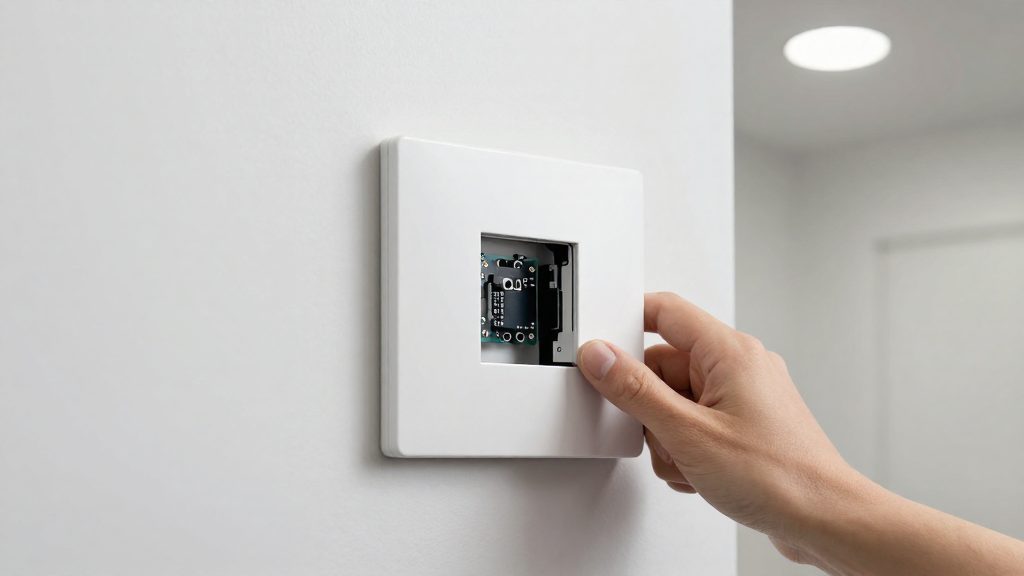
What are the power-on behavior options?
A smart switch’s power-on behavior determines what its output does when mains power returns after an outage. Some devices offer three modes: off, on and previous state (also called last state), while others fix one behavior at the factory.
The three modes
- Off: the output stays off after power returns. The connected load stays off until a command, schedule or automation turns it on.
- On: the output switches on as soon as power returns, whatever it was doing before the outage.
- Previous state: the switch restores the output state it had when power was lost. A load that was on comes back on, and a load that was off stays off.
How each mode affects the load
| Mode | Load state after power returns |
|---|---|
| Off | Load stays off |
| Previous state | Load returns to its pre-outage state |
| On (selectable) | Load turns on |
Effect on lights, pumps and heating loads
- Lights: in previous state mode, a light that was on at the moment of the outage turns back on when power returns, even if nobody is home. Off mode prevents this, and on mode turns the light on every time.
- Mixed loads: a switch that controls several devices through one output applies the same post-outage state to all of them.
Whether the remembered state persists across outages
To confirm how your switch behaves over repeated outages, test it: set the load on, cut power at the breaker, restore power and check the output. Then set the load off and repeat the cycle. Running several cycles in each state shows whether the switch follows the saved state every time or only after the first event.
How do you change the power restore setting?
The power restore setting is stored on the switch, but you change it through whichever interface controls that switch: the manufacturer’s mobile app, a hub’s device page, or a configuration screen for Z-Wave devices. Menu names and locations vary by brand, so identify the path your model uses before you start.
Changing the option in the vendor mobile app
Vendor apps are the most direct route for switches that connect to their manufacturer’s cloud or app directly, including Wi-Fi models. The general sequence is:
- Open the app and select the switch from the device list.
- Open the device settings, usually behind a gear icon or an “Advanced” entry.
- Look for a label such as “power-on behavior” or “state after power restored.”
- Select the value you want and save.
If the option is missing, check the manufacturer’s instructions for that exact model. Many switches place it under advanced settings rather than the main screen.
Using the hub’s device settings page
When a switch is paired to a hub, the hub’s interface is often the place to change the setting. In Home Assistant, for example, each device has its own page that lists its configurable entities. In most hub interfaces, the steps are:
- Open the device page in the hub’s app or web interface.
- Find the configuration or advanced section.
- Edit the restore option and save.
For Z-Wave switches, the option is usually exposed as a raw configuration parameter, not a named toggle. Parameter numbers and value mappings are model-specific, so read the device’s documentation before editing a raw value.
Confirming the saved value
A selection on screen does not always confirm what the switch stored. Verify by:
- Closing and reopening the device settings and checking that the selected option persists.
- Refreshing the hub’s device page, since some interfaces may show a previously stored value until the device is re-read.
- Reading the configuration value back, where the platform supports it, rather than relying on the displayed selection.
| Method | Where to look | What to confirm |
|---|---|---|
| Vendor mobile app | Device settings | Selected option persists after reopening the app |
| Hub device page | Configuration section | Value is still shown after a page refresh |
| Z-Wave configuration | Parameter read-back | Stored value matches the value you set |
Settings on Z-Wave, Zigbee and Wi-Fi switches
Post-outage behavior on Z-Wave switches is set through configuration parameters, numbered settings written to the device. Zigbee and Wi-Fi switches usually expose these options through the manufacturer’s app or the hub’s device page. Some Zigbee switches, such as the Inovelli Blue Series (VZM31-SN), also expose them as numbered parameters on some platforms.
Z-Wave: Zooz and Inovelli
The documented examples below show how the options vary:
| Model | Setting | Available values | Default |
|---|---|---|---|
| Zooz Zen15 | Power-restore option | Always on, always off, previous state | Not specified in the source |
| Zooz Zen04 | Parameter 4 | Off, on, previous state | Previous state |
| Inovelli Blue Series (VZM31-SN) | Parameter 256 | 0 = off, 1 = on, 2 = previous state | Not specified in the source |
| Inovelli Red Series (LZW31-SN) | Parameter 11 | Value mapping depends on firmware | Not specified in the source |
Zigbee and Wi-Fi switches
Zigbee and Wi-Fi switches do not use numbered Z-Wave parameters. To find out whether a given switch offers a choice:
- Open the device page in the manufacturer’s app and look for a power-on or power-restore option.
- If the option is present, select the state you need and confirm it in the app after saving.
- If no option appears, the post-outage behavior is fixed.
When should you choose on, off or last state?
The right power-restore setting depends on what the connected device does when power returns without anyone present. Last state suits devices where an automatic restart is harmless, such as lights and fans. Off is the safer choice for heaters and chargers, because power returning to them unattended can start them without warning. Off reduces this risk but does not eliminate it, so avoid running unattended heaters on smart switches unless the switch is rated for the load. On fits devices that must keep running, such as pumps and always-on plugs. The setting also has to match what your switch supports, since brands differ on the default behavior.
Lights and fans: when restoring last state helps
Last state works best where the device’s previous condition is what the occupant wants to see after a short outage. A ceiling light that was on in the evening comes back on, and a lamp that was off stays off, so the room matches the household’s routine without manual intervention. Ceiling fans follow the same logic: they resume the running state they had before the outage. Last state is the most natural option for these loads because the restart is expected and low-risk.
Heaters and chargers: why off is often safer
For heaters and chargers, a restart without supervision is the main concern. A space heater that powers back on while no one is home, or a battery charger that resumes charging unattended, creates a hazard that a light does not. Setting these loads to off means they stay idle until someone turns them on through the app, a voice command or a physical switch. Check the manufacturer’s instructions for each heater and charger, because some devices include their own restart rules that may conflict with the switch setting.
Pumps, plugs and always-on devices: choosing on
Devices that must run continuously belong on the on setting. A water pump or an aerator on a fish tank should restart as soon as power is restored, so that circulation or aeration resumes without a manual step. The on setting guarantees that behavior regardless of what the device was doing before the interruption.
Matching the setting to the hardware
How do you test outage recovery safely?
Testing outage recovery means cutting power to the switch, restoring it, and checking what the switch and its load do. The safest method uses a breaker test with a low-risk load, a written record of states before and after each cut, and several repeated cycles. A test on your own wiring is the only way to confirm the behavior you will get.
Use a breaker test with a non-hazardous load
Simulate the outage at the circuit breaker, not by pulling wires from a live switch. Connect a low-risk load such as a small LED lamp. Switch off the breaker, confirm the load is dark, then switch the breaker back on. If you are not comfortable working inside a wall box, have a licensed electrician handle the switch-side work.
Record states before and after each cut
Write down the state of the switch and the load before you cut power, then compare them after restoration.
| Field | What to record |
|---|---|
| Switch state before cut | On or off, as shown at the wall and in the app |
| Load state before cut | Lit or dark |
| Switch state after restore | On or off, without any manual press |
| Load state after restore | Lit or dark, and how long after the breaker was closed |
| Manual action needed | Yes or no, and what action |
Repeat across several outage cycles
Run the cut-and-restore sequence several times. Test both starting positions, switch on and switch off, because a previous-state setting should reproduce whichever position was active before the cut. A switch that recovers correctly once but inconsistently across cycles should not be trusted for unattended use.
Hub and platform issues after an outage
Restoring power does not guarantee that a switch, the hub that controls it and the app that automates it agree on the same state. A switch can reboot into its own power-restore behavior while the hub is still reconnecting, the cloud service is unreachable, or an automation has already run. The result is a mismatch: the app shows “on” while the relay is off, or a schedule overrides a state the switch restored correctly. Diagnosing this means checking three layers separately: the device’s actual state, the hub’s record of that state, and the automation logic above it.
Hub reconnection and state resync
When a hub loses power, devices may keep running, but the hub’s record of their state can be stale. After the hub returns, it must poll or receive status reports from each device. Until that resync completes, the app may display the last known state rather than the actual one. Devices on mesh protocols such as Zigbee, Z-Wave or Thread rely on the hub or a border router to relay status, so a hub that is still rejoining can leave some devices showing old states while others are already current. Resync time depends on the platform and the number of devices. Check the state on the device’s own details page rather than the dashboard tile, and confirm that the “last seen” time has updated.
Automations firing after restore
Automations triggered by power-on events, or by a device reporting “on”, can run in the same window. A rule such as “turn on the lamp at sunset” or a routine tied to a restored switch state can send a command that overrides the state the switch already holds. Open the automation history in your platform to see which rules ran after the outage and in what order. For rules that should not run after a restart, add a condition such as “only if the device is currently off”, where the platform supports conditional logic.
Cloud-only devices
Devices that depend entirely on a vendor cloud have no local state to fall back on. If the internet connection or the vendor’s servers are unavailable after an outage, the app cannot read the switch’s status or send commands, even though the switch itself is powered and working. Local control keeps state visible without a cloud round trip. Matter devices on a local fabric and Zigbee or Z-Wave devices on a hub are the opposite case: they can keep state and control available locally, though a hub or border router must be back online. Check the manufacturer’s documentation to confirm whether a given model supports local control and what happens when its cloud connection is lost.
| Layer | What can desync | What to check |
|---|---|---|
| Device firmware | Relay state differs from the reported state after the power-restore setting applies | Physical switch position against the device details page |
| Hub | Cached state stays stale until resync completes | Hub connection status and each device’s last-seen time |
| Automations | A rule fires on restart and overrides the restored state | Automation run history for the outage window |
| Cloud service | State cannot be read and commands fail while offline | Whether the device works with the internet connection down, and whether local control is available |
Frequently asked questions
Why does my smart switch turn on by itself after a power cut?
Some switches store their relay state in non-volatile memory and reapply the last position when power returns. According to SmartThings Community (Samsung), Leviton, Neo Coolcam, Aeotec Smart Switch 5, IKEA Tradfri and TP-Link Wi-Fi sockets restore their previous state, so a light that was on before the outage will come back on.
Can I change the power-restore behavior on my Z-Wave switch?
Often, yes, through a configuration parameter. The Zooz Zen15 offers always on, always off or previous state, and on the Zooz Zen04 parameter 4 sets off, on or previous state, with previous state as the default (SmartThings Community (Samsung)). Check your hub’s device page for the parameter list, because the menu names and numbers differ between models.
Is it safe to leave a heater on a smart switch after an outage?
No setting makes this fully safe. Setting the switch to off reduces the risk that a heater restarts unattended, but it does not remove it. Use a switch rated for the heater’s load, and check the product label and manufacturer’s instructions before connecting any heating appliance.