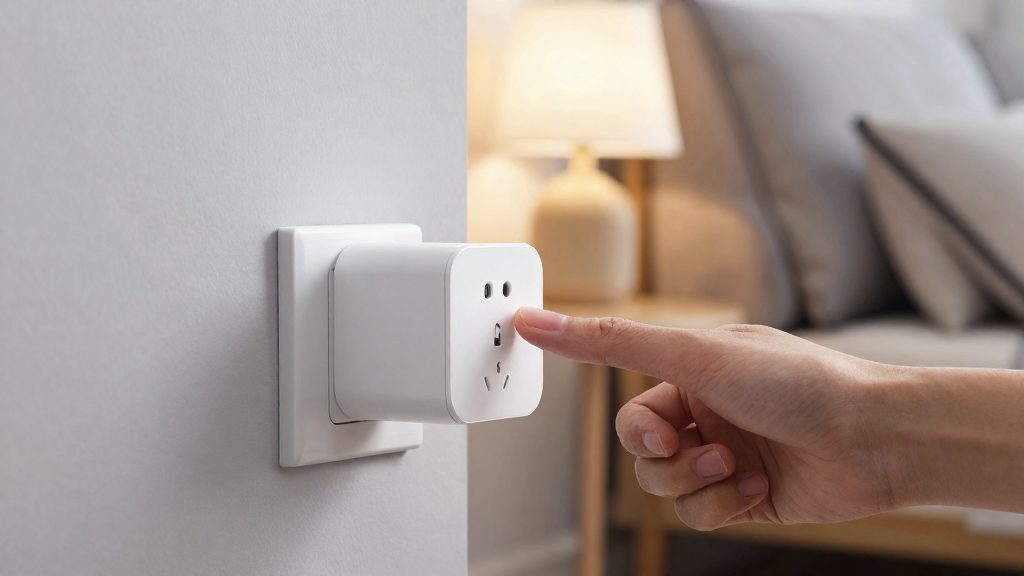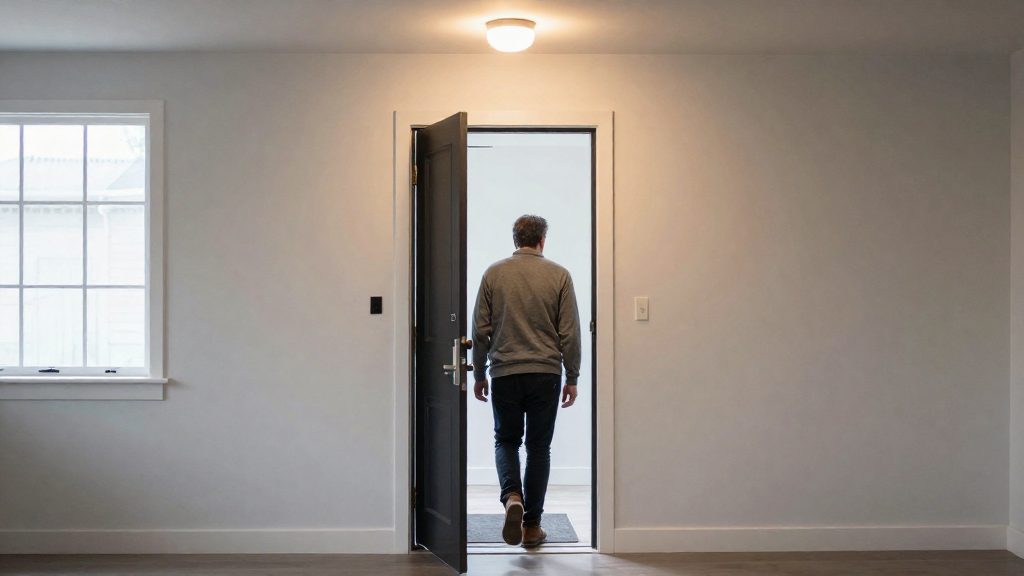
A routine that turns off lights when everyone leaves watches a household presence state, not individual bulbs. That state changes when the last tracked phone leaves the home. In Google Home, the Away automation starts at that moment and can turn off lights, plugs and switches. In Home Assistant, the device_sun_light_trigger integration turns lights off when everyone is away. The light commands are a result of the presence change, so each light doesn’t need its own departure rule.
How does a routine turn off lights when everyone leaves?
Presence state drives the sequence
The routine has one input: the household’s presence state. Lights, plugs and switches are the output targets. The routine involves three components:
| Component | Role in the sequence |
|---|---|
| Presence state | Changes from home to away when the last tracked phone leaves |
| Google Home Away automation | Starts after the last person’s phone leaves; can turn off lights, plugs and switches |
| Home Assistant device_sun_light_trigger | Turns lights off when everyone leaves |
Because the trigger is the state change, a light that is switched on manually while someone is still home is not part of the departure event. The routine only acts when the household moves to away.
Deriving household presence from device_tracker or phone location
Google Home derives presence from phone location sensing. Home Assistant derives it from device_tracker entities, which the person integration links to people. In both cases, the household counts as away only after the last tracked device leaves.
This has a direct consequence: a person whose phone location is not shared is absent from the calculation. Google says that if someone doesn’t share their phone location, the automation may miss their arrival or departure. In Home Assistant, the sun, device_tracker, person and light integrations must all be enabled before device_sun_light_trigger works. Add device_sun_light_trigger: to configuration.yaml and restart.
Delay between last departure and light command
The gap between the last departure and the light command has two parts: the time before the platform registers the departure, then the time to send the commands. This article gives no figure for either. The delay depends on how quickly each phone’s location update reaches the platform.
To measure the delay in your own home, note the time of departure and the time the lights change. Then compare the two against the automation history or activity log in your platform.
What you need before you start
The routine needs two things: a presence signal that tells the system when the last person has left, and lights, plugs and switches that the same platform can control. Google Home and Home Assistant both depend on these prerequisites, and the setup is not reliable until each one is in place.
Compatible lights, plugs and switches on one hub
Every device the routine should turn off must belong to the same home or hub that runs the automation. According to Google Home Help (2026), the Away automation can turn off smart plugs, switches and lights when the last person leaves, so inventory these three device types first. Confirm support for each product on its packaging or in the manufacturer’s instructions, because compatibility depends on the brand and protocol.
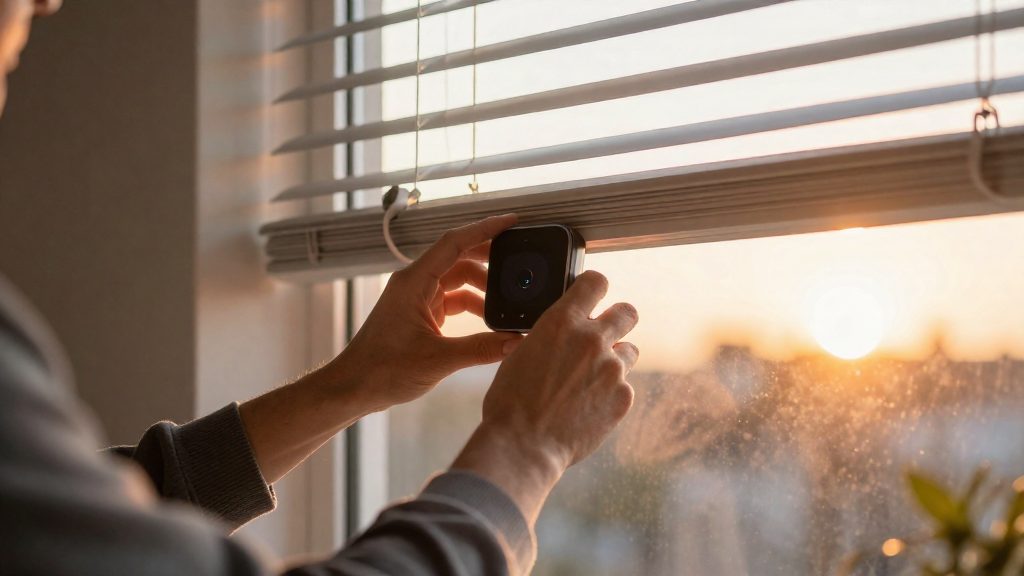
Motion sensors are optional, but they affect timing. Google Home Help (2026) states that device sensors that detect motion can delay the switch to Away, so the home may switch to Away later than you expect, and the lights stay on until it does.
Phone location sharing for every member
On Google Home, presence detection uses phone location. Google Home Help (2026) states that phone location sharing is off by default and requires opt-in. Each household member must enable it on their own phone. Enabling it on one phone does not cover the others, so check every member individually before relying on the routine.
Home Assistant integrations
Home Assistant needs four integrations enabled: sun, device_tracker, person and light. Before you proceed, confirm that each household member appears as a person entity and that their phone is tracked through a device_tracker.
Summary of requirements
| Platform | Requirement | Source |
|---|---|---|
| Google Home | Smart plugs, switches and lights on the same home | Google Home Help (2026) |
| Google Home | Phone location sharing opted in for every member | Google Home Help (2026) |
| Home Assistant | sun, device_tracker, person and light integrations enabled | Home Assistant (2026) |
Set it up in Google Home
Google Home’s Away automation turns off the lights, switches and smart plugs in your home once the last person leaves. It runs on presence sensing, which uses each person’s phone location, so you set it up in two parts: enable presence sensing for every household member, then turn on the Away automation itself. The Away automation starts after the last person’s phone leaves, and the Home automation starts when the first phone returns (Google Home Help, 2026).
Enabling presence sensing for each member
Presence sensing has to be enabled for each person’s phone separately. An unenrolled phone is invisible to the system, so a household member who has not been added can be treated as absent even while at home, or the reverse. Repeat these steps for every adult and teenager who should count toward the “last person out” trigger.
- Open the Google Home app on the phone that controls your home.
- Go to your home’s settings and find the presence sensing or home and away section. Menu labels vary by app version, so search for “presence” if the path differs.
- Ask each household member to turn on phone location sharing in the Google Home app on their own phone. Google says it is off by default.
- Repeat on each member’s own phone, since location settings are controlled on the device.
Locating and activating the Away automation
With presence sensing in place, the Away automation becomes available to configure.
- In the Google Home app, open the Automations or Routines area and look for the Away entry under the presence-based options.
- Select the devices to switch off. The Away automation can control smart plugs, switches and lights, so add the lights you want off on departure.
- Save the automation and confirm it is set to active.
Testing Away with a manual departure check
Test the automation before relying on it. Use a controlled departure rather than waiting for a normal day.
| Step | Action | What to observe |
|---|---|---|
| 1 | Confirm the Away automation is active and lights are on | Baseline state of each selected device |
| 2 | Leave with the last enrolled phone and stay away | Whether the phone is recognised as away |
| 3 | Check the selected devices after the departure | Whether they turned off |
| 4 | Return and check the Home automation | Whether devices respond to the first returning phone |
Record how long the switch-off takes in your home, and repeat the test with a different member as the last one out. If a device stays on, use the troubleshooting guidance in the rest of this article rather than changing settings at random.
Set it up in Home Assistant
The device_sun_light_trigger integration is enabled from configuration.yaml. Add the key, save the file, and restart Home Assistant. No separate automation is needed.
Add the entry to configuration.yaml
Open configuration.yaml and add the following line at the top level, with no indentation:
device_sun_light_trigger:This bare entry activates the default behavior, because the disable_turn_off option defaults to false.
Disable the turn-off behavior
To keep the integration loaded but stop it from switching lights off, add the disable_turn_off option beneath the key, indented two spaces:
device_sun_light_trigger:
disable_turn_off: true| Configuration | Option value | Effect when everyone leaves |
|---|---|---|
device_sun_light_trigger: only |
Default (false) |
Lights turn off |
disable_turn_off: false |
Explicit false |
Lights turn off (same as default) |
disable_turn_off: true |
true |
Lights are not turned off |
Use disable_turn_off: true when you want the integration present but do not want departures to switch lights off.
Restart and verify
Edits to configuration.yaml take effect only after a restart. Restart Home Assistant from the interface, then confirm the change:
- Open Developer Tools, then the States tab, and check that each tracked
personentity updates tonot_homewhen its phone leaves. - Confirm that the lights turn off, or stay on, according to the option you chose.
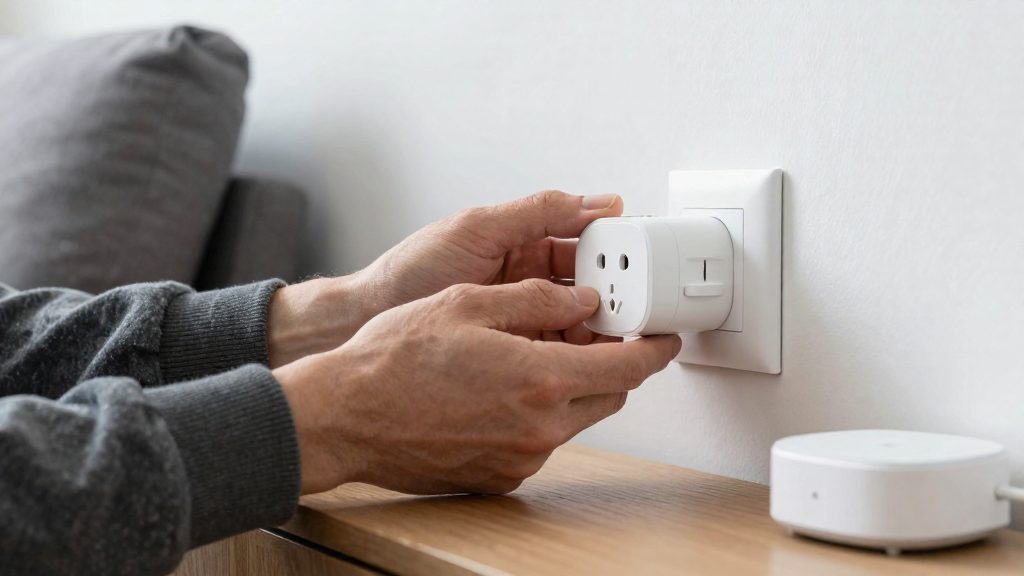
Why didn’t my lights turn off?
When lights stay on after everyone has left, the cause usually sits in one of three places: the presence signal, the motion sensors that can hold it back, or the bulb itself. A missing or delayed departure signal delays the whole routine. In Home Assistant, the turn-off logic is handled by a separate integration, which means its checks differ.
Motion activity postpones the Away switch
Google Home Help (2026) notes that device sensors detecting motion can delay the switch to Away. If a sensor in the home keeps reporting movement, the house stays in its occupied state and the lights remain on. Check the activity history of the motion sensors in the Google Home app to see whether they reported movement after the last person left.
A phone stops sharing its location before departure
Google says the automation may miss that person’s arrival or departure, so the Away routine may not start. Open the presence status in the app and confirm that each household member’s phone shows as away when they leave.
The bulb is offline when the command runs
A routine can only switch off a light it can reach. If the bulb has dropped off its network or hub, the command may not reach it even though the automation itself ran. Test the bulb manually from the app. If it doesn’t respond, restore its connection before testing the routine again.
| Symptom | Likely cause | First check |
|---|---|---|
| Lights stay on, sensor recently active | Motion delays the Away switch (Google Home Help, 2026) | Motion activity history in the app |
| Lights stay on, one phone never left | Phone not sharing location (Google Home Help, 2026) | Presence status of each member |
| Lights stay on, routine ran | Bulb unreachable at the time of the command | Manual on/off test from the app |
| Lights stay on, Home Assistant setup | Turn-off disabled | Confirm disable_turn_off is not set to true (Home Assistant, 2026) |
Should you add motion sensors as a backup?
Yes, when your away detection depends only on phones. A motion sensor reports occupancy in a room without needing a phone, so it covers cases where phone-based presence cannot. The same gap appears whenever an occupant’s phone is left behind or is not connected. A sensor in the room where lights are most often left on gives the routine a direct check on whether anyone is still there.
Gaps in phone presence that motion sensors fill
| Gap | Effect without a sensor | What a motion sensor adds |
|---|---|---|
| Last occupant leaves the phone at home | Departure may not be detected | Shows that no motion is occurring in the room |
| Occupant without a phone, such as a child or a guest | Their presence is invisible to the hub | Shows that they are still moving in the room |
A sensor reports motion, not confirmed absence. Use it as one condition in a routine, combined with the phone-based presence signal, rather than as the only trigger.
Placement that limits false readings from hallways
- Aim the sensor at the room itself, not down a corridor, so people walking past a doorway are not counted as occupants.
- Avoid pointing it at doorways that open onto busy hallways.
- Keep it away from heating vents and direct sunlight through windows, which can produce unexpected triggers.
- Walk the normal route through the room, then walk past the doorway from the hallway. Check the hub’s activity history to confirm that only the room registers motion.
Sensors compatible with your hub’s protocol
- Confirm which protocol your hub supports: Matter, Thread, Zigbee, Z-Wave, or Wi-Fi.
- Zigbee and Z-Wave sensors need a hub or coordinator with the matching radio.
- Wi-Fi sensors connect directly to your home network and need no separate bridge.
- In Home Assistant, Zigbee sensors are typically added through ZHA or Zigbee2MQTT, which require a compatible coordinator adapter.
- For Matter devices, check the manufacturer’s compatibility list for your specific hub before purchase.
Privacy and safety limits of presence automations
Presence automations are a convenience feature. According to Google Home Help (2026), presence automations are for convenience only and are not for safety or security-critical use. A routine that turns off lights when everyone leaves should not be the thing that secures the house, confirms a door is locked, or keeps a device running for protection.
What presence signals can and cannot tell you
Presence is inferred from phone location, not confirmed.
Default behaviour in Home Assistant
The device_sun_light_trigger integration turns lights off when everyone leaves. Its disable_turn_off option defaults to false, so the turn-off behaviour is active unless you set it to true. Verify the disable_turn_off value in configuration.yaml before assuming lights will stay on.
Keeping safety and security devices out of presence routines
Smoke and CO alarms, door locks, cameras and their hubs should stay under their own apps and schedules. Before you add a plug or switch to a presence routine, confirm that it does not power a camera base station, a hub or any other device that must keep running.
Who can see household location data
The data sources available here do not describe who can view household location data, so verify this yourself. In the Google Home app, review the list of household members and their sharing settings. On each phone, check which apps have location permission. For any platform you use, read its privacy policy to find out who can access location-derived data and how long it is kept.
Frequently asked questions
Why did my lights stay on after everyone left?
Google Home only switches to Away after the last tracked phone leaves, so a phone with phone location sharing turned off will not register a departure. Google also notes that motion sensors can delay the switch to Away for the entire home, not just the room where the sensor is. Check that every household member’s phone is sharing location before you troubleshoot the automation itself.
Can I keep certain lights on when the routine runs in Home Assistant?
Not with the disable_turn_off option, which is set per integration, not per light. Setting it to true stops device_sun_light_trigger from turning off any lights, and its default is false. To keep specific bulbs on, check the integration’s options in the Home Assistant documentation for an approach that targets individual entities.
Can I rely on this routine to secure my home when I leave?
No. Google states that presence automations are for convenience only and are not meant for safety or security-critical use. Use dedicated security devices for protection, and test the routine manually before you depend on it.