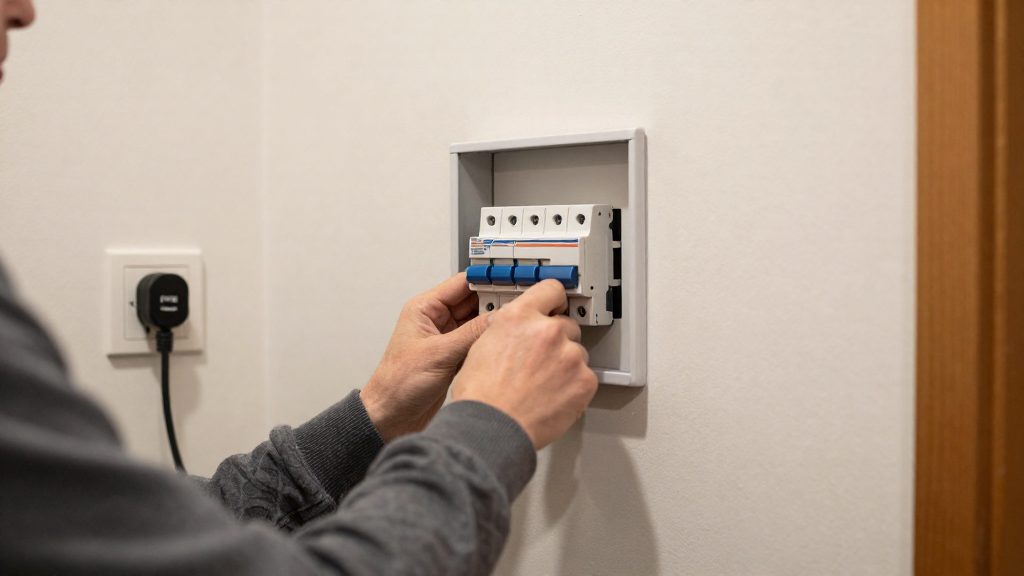
Why do smart devices go offline after a power outage?
A power outage interrupts more than a device’s electricity. It also breaks the network links the device depends on, so a device can have power and still appear offline. A smart device typically needs three things to work: an active Wi-Fi association with a router, a registration with a hub or a manufacturer’s cloud service, and a valid session that identifies it to that service. A power loss can disrupt each of these, and the device must rebuild every one before the app or hub shows it as online.
Wi-Fi association is dropped
A Wi-Fi device stays associated with its network only while it is powered and running. When power is cut, the association ends, and the router’s record of the device is cleared or left stale. On restart, the device must scan for the saved network name, authenticate with the stored password, and obtain an IP address. If the router is still starting up at that moment, one of these steps can fail, and the device stays disconnected until it retries.
Hub and device state is lost
Hubs and bridges for protocols such as Matter, Zigbee and Z-Wave hold the device list, pairing data and automation logic in their memory and storage. A device’s own power-loss behaviour is separate from the hub’s state. Whether a device returns to its last state (on, off or a set level) or to a default state depends on its firmware and on a power-loss recovery setting, which differs between manufacturers.
Cloud sessions and registration
Cloud-connected devices authenticate with the manufacturer’s servers using a session token. If that token expires or the account session is invalidated while the device is unpowered, the device can be running on the local network yet be unreachable through the app. A device may also need to re-register with its hub or cloud account before it accepts commands again. To tell these cases apart, check whether the hub itself shows as online in the app, and whether the account is still signed in on the phone.
Wait first: how devices reconnect in stages
According to Leviton (2026), smart home devices reconnect after a power outage in a fixed order: power first, then the internet and router, then the Wi-Fi devices themselves. Each stage depends on the one before it, so a device can appear offline while an earlier stage is still recovering. The process runs without user action, but it can take time.
| Stage | What happens | User action |
|---|---|---|
| 1. Power returns | Stable power is restored to the devices | None |
| 2. Internet and router reconnect | The router and its internet connection come back online | None |
| 3. Wi-Fi devices rejoin | Devices reconnect to the network automatically | None |
The retry window
Devices keep retrying their connection for a period after the network returns. Leviton says devices keep retrying for a while and mentions several minutes before clearing a device. It publishes no exact duration, and other brands’ behaviour may differ. Check the manufacturer’s instructions for the expected behaviour, or contact the manufacturer directly if a device does not recover.
Check your internet before blaming the devices
Before assuming a smart device is faulty, confirm that the internet connection itself works. A device that appears offline may simply be waiting for the network to recover. Testing the connection in the right order separates a connectivity fault from a device fault.
Phone Wi-Fi versus cellular data test
Leviton’s first check is to confirm that the internet works. Connect a phone to Wi-Fi rather than using cellular data, then load a website you have not visited recently. A cached page or a page loaded over mobile data proves nothing about your home connection. If the page loads over Wi-Fi, the internet is reachable from your network. If it fails while cellular data works, the problem sits on the home network side, not in the devices.
Loading an unvisited site to confirm real internet access
Choose a site you have not opened recently so the browser cannot serve it from cache. A failed load after an outage points to the modem, router or service link, and the smart devices should not be troubleshot yet. Retry once the router has finished restarting.
What to do when a device stays disconnected
Once devices have had time to retry, a device that still shows as offline needs manual checks. Run the checks below first, so you clear only a device that has actually failed to rejoin.
Check the hub, the app and the range
| Check | What to verify | If it fails |
|---|---|---|
| Hub status | Whether any hub or bridge the device relies on is online and listed as connected in its own app | Restore the hub first, since devices that depend on it cannot rejoin until it is back |
| App connection state | Whether the manufacturer’s app (for Leviton devices, My Leviton) shows the device as offline or unavailable, and whether other devices on the same account respond | If only one device is offline, start with that device (power, range, its own settings). If several are offline, check the hub or Wi-Fi link first, while keeping in mind that the cause may be elsewhere. |
| Range | Whether the device sits within Wi-Fi range of the router or hub, with no new obstacles added since it last worked | Temporarily move the device closer to test. If it reconnects, weak signal at the original spot is a possible cause, but confirm by repeating the test, since the device may simply have finished retrying. |
Clear the device using Leviton’s method
Follow the clearing procedure in Leviton’s documentation for your specific model. Before you start, note the device’s state in the My Leviton app, so you can confirm afterwards whether the clear changed anything. Do not treat the clear as a shortcut past the earlier checks: if the hub is offline or the device is out of range, clearing it will not restore the connection.
How do you restart a router and smart devices in the right order?
Restart in dependency order: bring up the internet connection first, then the hub, then Wi-Fi devices, then battery devices. As a general practice, not a documented Leviton step, and only after the retry window has passed, restart in dependency order: internet connection first, then the hub, then Wi-Fi devices, then battery devices. Check the manufacturer’s instructions for your equipment.
| Order | Layer | Check before moving on |
|---|---|---|
| 1 | Modem and router | Internet loads on a Wi-Fi device |
| 2 | Hub or bridge | Shows as online in its app |
| 3 | Mains-powered Wi-Fi devices (plugs, switches, lights) | Each device shows as online |
| 4 | Battery-powered devices (sensors, locks) | Woken with the manufacturer’s method, then shown as online |
Restart the hub only after the network is online
Confirm internet access before you touch the hub. A hub that starts while the router is still reconnecting may fail to reach its cloud service, so confirm internet access first.
Give Wi-Fi devices time to rejoin
After the hub is online, leave Wi-Fi devices powered and let them retry. Check the app after each device so you can tell which one is still failing.
Wake battery-powered devices manually
Battery devices usually sleep to save power, so they may not reconnect until they wake. Methods vary by model: a button press, or a sync control where the manual describes it as a wake action. Do not use a reset button unless the manual says it only wakes the device, because on some devices it erases the pairing.
Update firmware and re-pair stubborn devices
If devices still fail after they have rejoined the network, check firmware before re-pairing anything. Leviton advises that, if problems persist once the devices have reconnected, you should install any pending firmware updates from the Updates section of the My Leviton app (Leviton, 2026).
Install pending updates in My Leviton
- Open the My Leviton app and go to the Updates section.
- Install every listed update for the devices that have reconnected.
- Wait for each update to finish before you use the device or start another update.
Update the hub before connected devices
When a hub manages other devices, update the hub firmware first, then the devices connected to it. This order is a general practice for hub-based systems, not a documented Leviton requirement, so confirm it against the manufacturer’s instructions for your hub.
Factory reset and re-pair a device
Use a factory reset only when a device still does not respond after its firmware is current. Reset procedures differ by model, so follow the manual or the manufacturer’s instructions for your exact device.
- Confirm the device has power and that your Wi-Fi network name and password have not changed since setup.
- Perform the factory reset using the method in the device’s manual.
- Remove the device from the app, then add it again through the app’s setup flow.
- Keep the device close to the router or hub during pairing.
Can you stop it happening again?
Fewer repeat outages come from deciding, at setup, which functions still work without the internet. A device that must reach a manufacturer’s server before it can respond stays unavailable until the internet link is restored. Reducing that dependence is the main setup lever.
Check where each device’s control runs
Look up each product’s documentation to see whether control works on your local network or requires the manufacturer’s cloud. Devices that depend on the cloud will be unavailable during an internet outage, even when power and Wi-Fi are working. Prioritise local control for lights, plugs and heating, since these are the functions you need during an outage.
Thread and Matter devices
Check the manufacturer’s product page for Matter or Thread support and for the controller the device needs. Confirm how the device behaves after a power cut in the manufacturer’s documentation rather than assuming it recovers locally.
Keep automations on the hub
Automations stored on a hub may run without a cloud service, depending on the hub and the integration. Set time-based and sensor-based routines, such as lighting schedules and heating programmes, on the hub rather than in a manufacturer’s app-only cloud service, where possible.
Backup power and surge protection for the hub
A hub such as a Home Assistant host, a Matter border router or a Zigbee coordinator goes offline the moment its power is cut, and it cannot run local automations until it boots again. Two different tools address two different risks. A UPS (uninterruptible power supply) keeps the hub powered through a short interruption. A surge protector limits voltage spikes on the line but supplies no power during an outage.
| Option | What it covers | What it does not cover |
|---|---|---|
| UPS | Keeps the hub running on battery until the battery is depleted | Long outages. Runtime depends on battery capacity and connected load, so check the manufacturer’s runtime rating against your hub’s power draw |
| Surge protector | Clamps voltage spikes on the mains line | Any loss of power. It does not keep a hub running during an outage |
Checking a surge protector
- Look for a certification mark recognized in Canada (CSA, for example) on the product label, and check it against the packaging rather than relying on the product name or marketing text.
- Read the manufacturer’s stated protection and warranty terms. They define which connected equipment is covered and under what conditions.
- Surge damage claims are settled against the manufacturer’s terms. Keep the proof of purchase and the product’s serial number. For questions about what a certification covers, contact the manufacturer or CSA directly.
Setting up a UPS for a hub
- Connect the hub’s own power supply to the UPS. Do not plug the hub into a surge protector and expect battery backup.
- Keep high-draw loads off the UPS, because they shorten its runtime for the hub.