Smart homes create privacy exposure for three structural reasons: the devices stay connected to the internet, they come from many manufacturers with separate data practices, and the data they produce can be combined into a detailed picture of daily life. According to the Office of the Privacy Commissioner of Canada (OPC, 2025), smart devices gather large volumes of user data on an ongoing basis. Each added device adds another point where data is collected, stored and transmitted, so the risk grows with every device installed rather than staying fixed.
Why smart homes raise privacy concerns
Constant connectivity widens the attack surface
A connected plug, lamp or lock is reachable over the internet, so each online device is a possible entry point into the home network and its accounts. Innovation, Science and Economic Development Canada (ISED) warns that data stored on connected devices could put users at risk in a security breach. The exposure therefore scales with the number of devices that stay online, not only with the most visible ones.
Collection can exceed what owners expect
ISED states that connected devices may collect more data than users expect from the device’s functions. A device bought for one task, such as scheduling a light, can hold data that goes beyond that task. The gap between what the owner expects and what the device collects is the core of the problem.
Fragmented vendors mean fragmented privacy terms
A typical home mixes devices from several brands, each with its own account, app and privacy terms. Protections set in one manufacturer’s app have no guaranteed equivalent in another’s, so owners must review data handling brand by brand rather than once for the whole home.
Cross-device data combination builds household profiles
When readings from lights, thermostats, locks and sensors are linked to one account or platform, their timestamps can reveal routines such as when occupants are present, asleep or away.
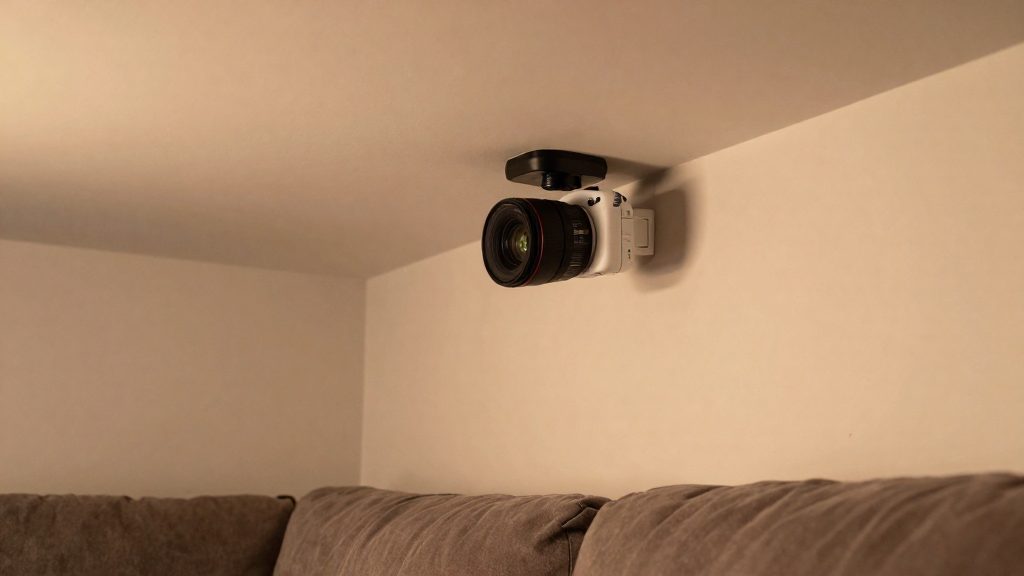
What data do smart devices actually collect?
Some smart home devices record more than their core function needs. Beyond the state shown in an app, most generate three families of data: device event histories, signals that reveal whether people are home, and energy readings that show how electricity is used.
Telemetry and event histories
Devices and their companion apps typically keep a timestamped record of activity. These logs usually capture:
- State changes, such as on, off, locked, unlocked or a new temperature setpoint
- The source of each command, such as the app, a voice assistant, a schedule or an automation
- Connectivity events, such as going offline or reconnecting
Individually these entries look trivial. Over weeks, they form a detailed daily timeline of the household.
Location and presence inference
Location is the most direct category. Even without a GPS fix from the device itself, a companion app can use the phone’s location to trigger geofenced automations, and that data can show when occupants leave and return. Motion, door and contact sensors add a second layer: their event timing indicates when rooms are occupied.
Energy consumption patterns
Smart plugs and energy-monitoring meters report power draw at regular intervals. A sequence of readings can reveal when appliances run, which exposes waking, cooking, work and absence patterns without any audio or video being recorded.
Data types at a glance
| Data type | What it can reveal | Practical check |
|---|---|---|
| Event histories and telemetry | Command sources, usage timing, routine triggers | Review the app’s history or activity settings and delete logs where the app allows it |
| Location and presence | Whether occupants are home, and arrival and departure times | Check which apps and phone permissions can read the device’s location |
| Energy readings | Appliance schedules and occupancy patterns | Check the app’s data retention settings and the manufacturer’s data policy |
Cloud or local: does it change your privacy?
Yes. The control architecture determines where your commands travel and where the resulting data is held.
Cloud relay paths
In a cloud relay setup, a command from your phone goes to the manufacturer’s server, which then forwards it to the device. Remote access works the same way. Your commands and device status pass through infrastructure the manufacturer operates, so its data practices apply to that traffic.
Local control protocols and hubs
Local control keeps commands between your phone, hub and devices on your home network. Matter, Thread, Zigbee and Z-Wave are protocols that can support local control, depending on the product, and Home Assistant is a platform often used for local control. Local does not automatically mean isolated: a hub or app can still send data to a vendor if that vendor’s cloud features are enabled. Matter is a shared standard, but whether a specific Matter device depends on its manufacturer’s cloud is set by that product, so confirm it in the device documentation.
Data retention on self-hosted hubs
With a self-hosted hub, you control the hardware that holds automation and history data, although integrations or cloud features you enable may still send data to third parties. Where that history is stored and how long it is kept depend on the hub’s configuration, so review its settings instead of assuming a default.
Do cameras, doorbells and voice assistants listen more than they should?
Sometimes. Voice assistants can be triggered by mistake, cameras can cover areas beyond the owner’s property, and shared access can expose footage to people the owner did not intend. For owners, the exposure concentrates in four areas: false wake-word activations, motion zones that reach beyond the property, audio and face recognition settings, and third-party access to video feeds. Each can be reviewed and narrowed in the device’s app without replacing hardware.
Wake-word detection and false activations
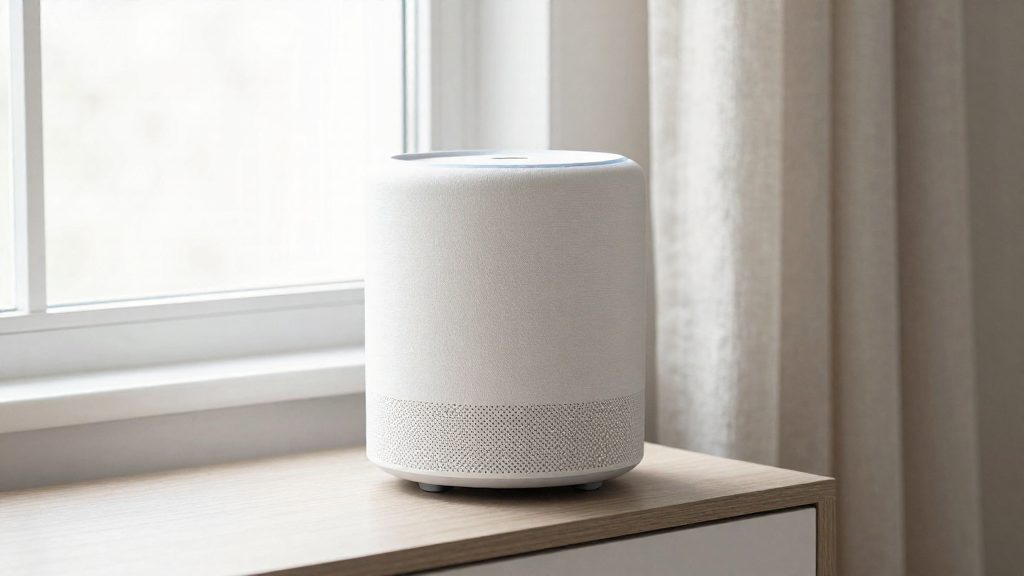
A voice assistant listens continuously for its wake word. A similar-sounding phrase, a television programme or a conversation can trigger it by mistake, and the resulting recording may be stored in the device’s history.
- Open the companion app’s voice or activity history and delete entries you did not intend to create.
- Keep devices out of rooms where sensitive conversations happen.
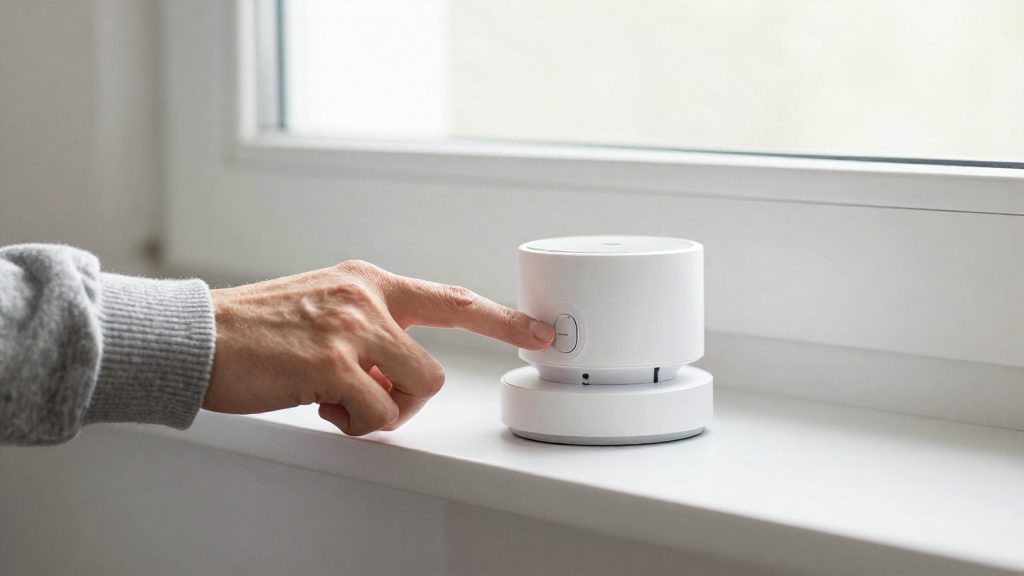
- If the device has a physical microphone switch, use it when the assistant is not needed, and confirm in the manual what the switch disables.
Motion zones and camera field of view
Motion zones define which part of the frame triggers recording and alerts. A zone drawn across a public pavement, a neighbour’s window or a shared driveway records people who have no connection to the household.
After adjusting a camera, check the live view and confirm that the edges of the frame stop at the property line. Where the app offers privacy masking, apply it to any area outside the property.
Audio capture and face recognition
Audio recording is typically a separate setting from video, so video and audio must be checked independently. Face recognition, where offered, compares detected faces against enrolled profiles.
- Confirm whether audio recording is enabled, and disable it if it is not needed.
- Check whether face recognition is switched on and review the list of enrolled faces.
- Delete profiles for people who no longer need to be recognised.
- Read the manufacturer’s documentation to find out where face data is processed (on the device, a local hub or the vendor’s servers).
Third-party access to doorbell and camera feeds
Access can extend beyond the account owner through several routes: shared household users, guest accounts, invitation links and integrations with other smart home platforms. Each route is a separate path to the same feed.
| Route | What to check | Action |
|---|---|---|
| Shared users | List of invited accounts in the app | Remove accounts no longer in use |
| Integrations | Connected services and their permissions | Revoke services you no longer use and review permissions before approving new ones |
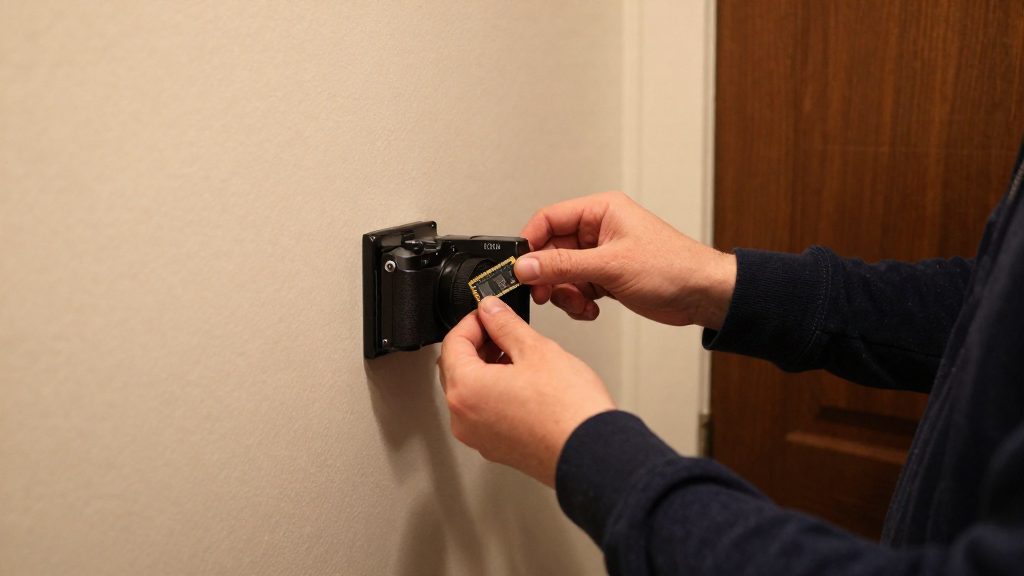
| Ownership change | Account linked to a resold or reassigned device | Make sure the previous owner’s account is unlinked from the device and perform a factory reset |
Review this list whenever a household member leaves, a service is added, or a device changes hands.
What do Canadian authorities recommend?
Innovation, Science and Economic Development Canada (ISED) has issued the most direct federal guidance on connected devices. The guidance was published on May 17, 2021 (ISED Canada, Office of Consumer Affairs, 2021-05-17).
Breach exposure of stored data
ISED warns that data stored on connected devices could put users at risk in a security breach (ISED Canada, Office of Consumer Affairs, 2021-05-17). Keeping less data on a device, where its settings allow, reduces what a breach could expose.
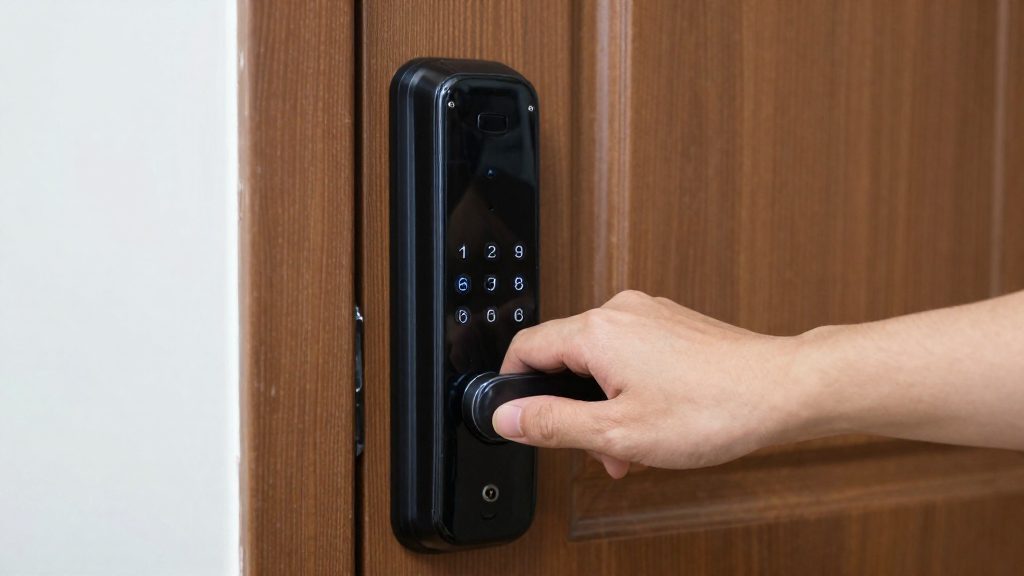
How to check a device before you buy it
Innovation, Science and Economic Development Canada (ISED) advises buyers to ask the vendor three questions: how the device collects, uses and shares data; whether you can opt out without losing security updates; and how long security patches will be provided. According to ISED’s Office of Consumer Affairs (2021-05-17), buyers should also check whether the device works offline and whether it still functions if the manufacturer goes out of business.
| Check | What to confirm with the vendor |
|---|---|
| Data collection | Which data the device collects, beyond what its functions need |
| Data use and sharing | How the data is used and with which third parties it is shared |
| Opt-out | Whether you can refuse data collection or sharing |
| Patch duration | How long security patches will be provided |
| Updates after opt-out | Whether opting out keeps you eligible for security updates |
| Offline function | Whether core functions work without an internet connection |
| Vendor closure | Whether the device still works if the manufacturer stops operating |
Verifying offline function and vendor closure
Read the manufacturer’s setup documentation for any local-only mode, and confirm which functions it names as working without the app or internet. Basic actions such as switching power or unlocking a door are the ones to check first, because they show whether the device depends on a vendor service to operate.
How do you secure and retire devices safely?
Securing a smart home device after purchase comes down to three habits: a unique password for each device, minimal personal information at setup, and switching off automatic data sharing such as location where the device allows it.
Credentials and setup information
- Use a strong, unique password for every device. Do not reuse a password across devices or accounts.
- Give only the information the device needs during setup.
- Turn off automatic sharing such as location in the app or device settings.
Telling guests about active devices
Visitors may not expect to be recorded or tracked by devices in a home. ISED advises telling guests when recording devices are active, and switching them off when a guest’s presence makes that appropriate.
Retiring a device
- Remove the device from its app or account so the cloud service no longer links it to you.
- Perform a factory reset to erase stored data and restore factory settings. Follow the manufacturer’s instructions, as the reset method differs between products.
- Dispose of the device through e-waste collection once it is wiped.