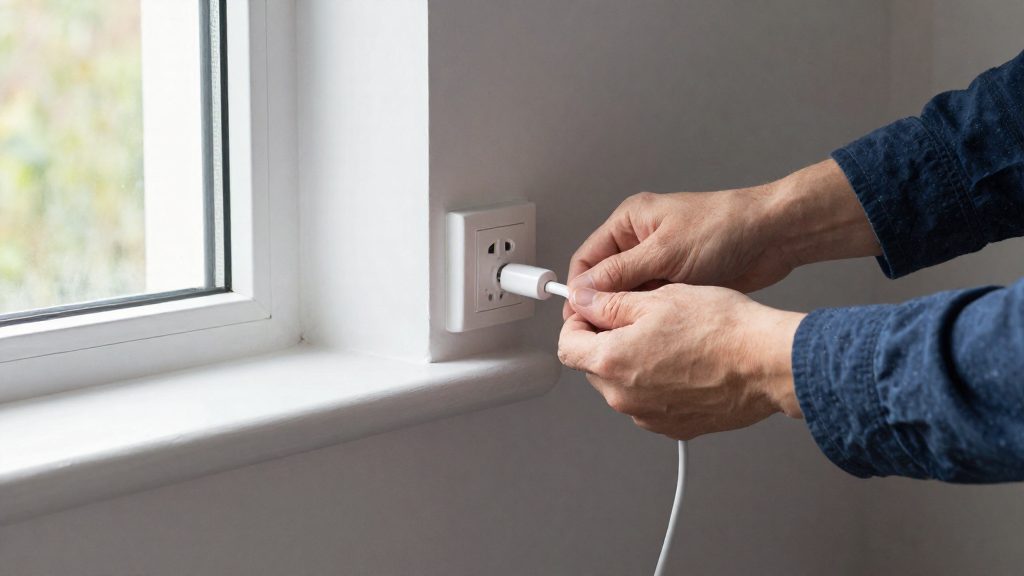
Does the Hue Bridge connect to Wi-Fi?
The Bridge does not join Wi-Fi directly. It connects to the router with an Ethernet cable, and the Hue app controls it over the home network, the local network your router manages (Philips Hue, 2026).
Why the Bridge uses Ethernet instead of Wi-Fi
A wired connection keeps the Bridge’s link to the router independent of wireless conditions. Philips Hue specifies an Ethernet cable included in the box and a router with an open LAN port as requirements for the Bridge (Philips Hue, 2026), so the cable is part of the product design, not an optional accessory.
For you, the practical consequence is that the Bridge appears on your network as a wired device. Its address is assigned by the router, and a wired-link issue shows up at the cable and the router port. Problems can also come from the phone’s network, as described below.
How the Hue app reaches the Bridge over the LAN
The app communicates with the Bridge through the home network. The phone must be on the home Wi-Fi network for this to work (Asurion, 2026).
| Component | Connection | Role in app control |
|---|---|---|
| Phone running the Hue app | Home Wi-Fi | Sends commands and setup requests |
| Router | Wi-Fi to phone, Ethernet to Bridge | Carries traffic between the two on the LAN |
| Hue Bridge | Ethernet to router LAN port | Receives app commands and controls the lights |
If the phone is on a different network, such as mobile data, the app cannot see the Bridge on the local network. Check the phone’s Wi-Fi connection before assuming a fault with the Bridge.
Why VPNs and network filters can block app control
A VPN routes the phone’s traffic through a remote server. The phone then no longer sits on the same LAN as the Bridge, so the app cannot reach it locally. Network filters, which block or restrict traffic between devices, can produce the same effect. Philips Hue lists turning off VPNs or network filters as a troubleshooting step (Philips Hue, 2026).
What you need before you start
Before you power on the Bridge, gather four things: a Hue Bridge (V2) with its included Ethernet cable, a router with an open LAN port, a power outlet close to the router, and the Hue app on a phone that is connected to your home Wi-Fi. Philips Hue (2026) lists these as the requirements for setup.
| Item | What to prepare |
|---|---|
| Hue Bridge (V2) or Bridge Pro | Confirm the box contains the Bridge and its Ethernet cable before you start. |
| Hue app | Install it on your phone before you power on the Bridge. |
How to connect the Hue Bridge to your router
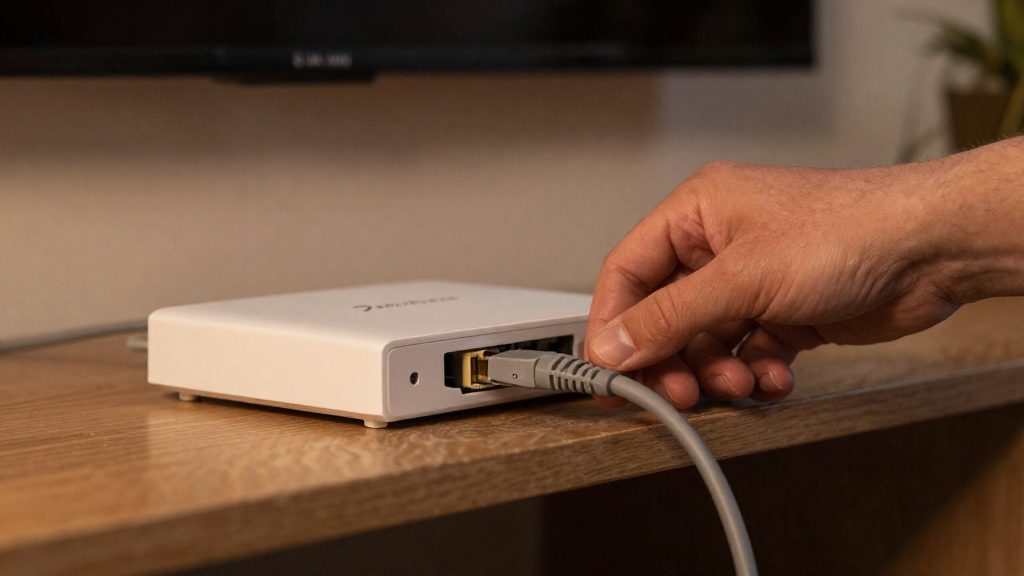
According to Philips Hue (2026), setup follows a fixed physical order: power the Bridge, connect the Ethernet cable to the router, then wait for the Bridge to finish starting.
Placement
Choose a location that meets two conditions:
- A power outlet near the router. The Bridge needs its own outlet, and the included Ethernet cable has to reach from the Bridge to the router without strain.
- Clear cable routing. Position both devices so the cable runs straight between them, without sharp bends at the connectors.
Power-up sequence
| Step | Action | Confirm before moving on |
|---|---|---|
| 1 | Plug the Bridge into the power outlet. | The Bridge powers on. |
| 2 | Connect one end of the Ethernet cable to the Bridge and the other to a LAN port on the router. | The cable is fully seated at both ends. |
| 3 | Wait for the Bridge to finish starting. | All three LEDs turn solid blue. |
Only proceed to the app once the three LEDs are solid blue. Philips Hue (2026) specifies this state as the point where the Bridge is ready for setup.
Choosing the router port
Use a main router LAN port rather than a secondary port or a network switch. Philips Hue (2026) recommends this port for the Bridge connection. The main router is the unit your internet service feeds into, and connecting there keeps the Bridge on the same network path as your primary devices.
What do the Hue Bridge lights mean?
The Hue Bridge has three status LEDs, and each one reports a different link in the chain: the power supply, the connection to your router, and the connection to the internet. Reading them left to right shows how far the connection gets before it stops. According to Philips Hue (2026), the left LED indicates power, the middle LED indicates the connection to the router, and the right LED indicates the connection to the internet.
| LED position | Function | What to look for |
|---|---|---|
| Left | Power | Lit when the Bridge is receiving power |
| Middle | Connection to the router | Lit when the Bridge is connected to the router over Ethernet |
| Right | Connection to the internet | Lit when the Bridge has an internet connection |
| Right, blinking | Connection search | The Bridge is searching for an internet connection |
The blinking right LED is the only blinking state described for these indicators. It means the Bridge is still searching, so the internet link has not been established yet. Because the middle LED tracks the router link separately, its state tells you whether the problem sits between the Bridge and the router or further upstream. If the left and middle LEDs are lit and only the right one is blinking, the Bridge has power and a local connection, and the search is happening on the internet side.
Use the LEDs as a status check before you open the Hue app. Each LED answers one question, so you can tell which link needs attention without guessing.
How to pair the Bridge with the Hue app
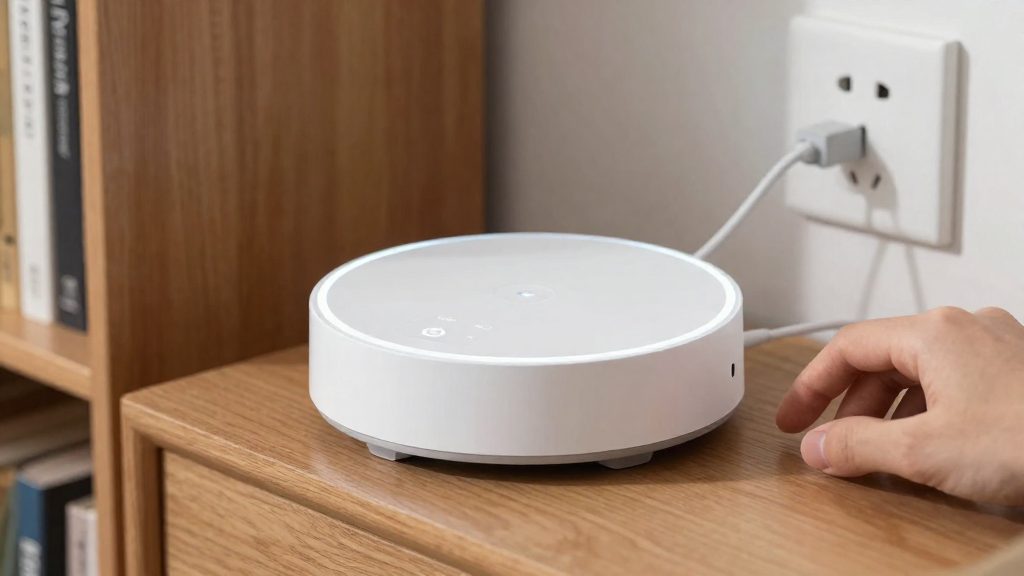
Pairing starts in the Hue app, which finds the Bridge on your home network and then asks you to confirm it physically.
Path 1: Following the app’s prompt
When the Bridge is ready, choose Set up new Bridge in the Hue app. The app then shows a prompt asking you to press the round button on the Bridge. Press it once. The app detects the press and completes the pairing.
Path 2: Scanning the QR code manually
If the app does not show the prompt, use the manual route described by Asurion (2026):
- Open Settings > Devices in the Hue app.
- Tap the plus icon.
- Scan the QR code printed on the Bridge.
- Press the center button on the Bridge when the app requests confirmation.
Both routes end with the same physical confirmation, so the button press is never skipped. Once pairing finishes, lights are added from the same Devices screen.
| Step | Where | Action |
|---|---|---|
| 1 | Bridge | Wait for all three LEDs to turn solid blue |
| 2 | Hue app | Choose Set up new Bridge |
| 3 | Hue app (fallback) | Open Settings > Devices, tap the plus icon, scan the QR code |
| 4 | Bridge | Press the round button when prompted |
Bridge not connecting? Quick fixes
Work through these steps in order. Each one is less disruptive than the next, so stop as soon as the Bridge connects. Philips Hue (2026) lists these steps for connection problems.
| Step | Action | Effect |
|---|---|---|
| 1 | Reseat both Ethernet ends | Clears a cable that is partly unseated at the Bridge or the router |
| 2 | Power-cycle the router and the Bridge for about 30 seconds | Restarts both devices and clears a stalled connection |
| 3 | Hold the reset button on the back of the Bridge for about 5 seconds, then set up again | Last resort: returns the Bridge to a state where it can be added to the app again |
Reseat both Ethernet ends
Reseating means unplugging the Ethernet cable from both the Bridge and the router, then pushing each connector back in until it clicks. A connector that looks inserted can still have a loose latch, which breaks the link intermittently. Check that the cable sits in the router’s LAN port, not in a port marked for the internet (WAN).
Power-cycle the router and the Bridge
Unplug the power of the router and the Bridge at the same time, wait about 30 seconds, then power the router first. Wait for the router to finish starting before you power the Bridge. Philips Hue (2026) recommends this same approach: unplug both devices for about 30 seconds and restart them. A power cycle clears a stalled connection that the Bridge cannot recover from on its own.
Last-resort reset
If the Bridge still does not connect after the two steps above, hold the reset button on its back for about 5 seconds. Philips Hue (2026) describes this as a last resort, followed by a new setup. Before you reset, note that you will need to add the Bridge again in the Hue app, so have the Bridge’s QR code ready.
Can you use a Bridge Pro?
Yes. The Bridge Pro is a supported Hue Bridge model, and Philips Hue (2026) states that it is set up the same way as the Hue Bridge (V2).
The practical difference is in the app. Philips Hue (2026) notes that the Bridge Pro has its own option, so you select it during setup rather than using the generic Bridge path. The hardware steps stay the same, so the rest of the procedure does not change.
| Scenario | App path |
|---|---|
| New Hue Bridge (V2) | Set up new Bridge |
| New Bridge Pro | Bridge Pro option |
| Upgrading from a standard Bridge | Migration Tool |
Upgrading from a standard Bridge
If you already run a standard Bridge and replace it with a Bridge Pro, Philips Hue (2026) makes a Migration Tool available for this upgrade. Use it in the app instead of building the setup from scratch. The tool is the intended upgrade route, so check Philips Hue’s instructions for the details of what carries over, since those details are not covered here.
Before you start the upgrade, confirm that the new unit can use the same router LAN port and power outlet as the old one.