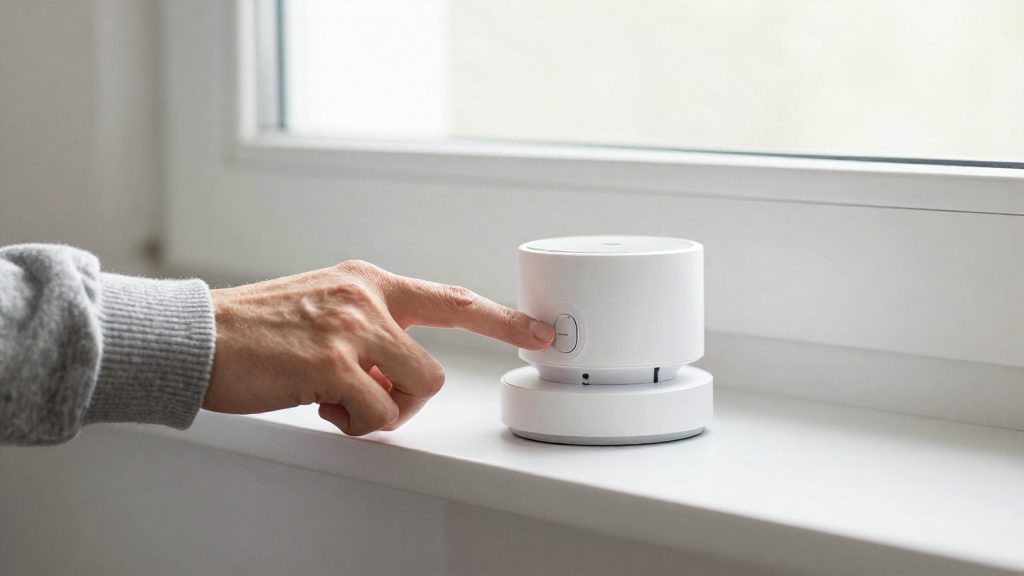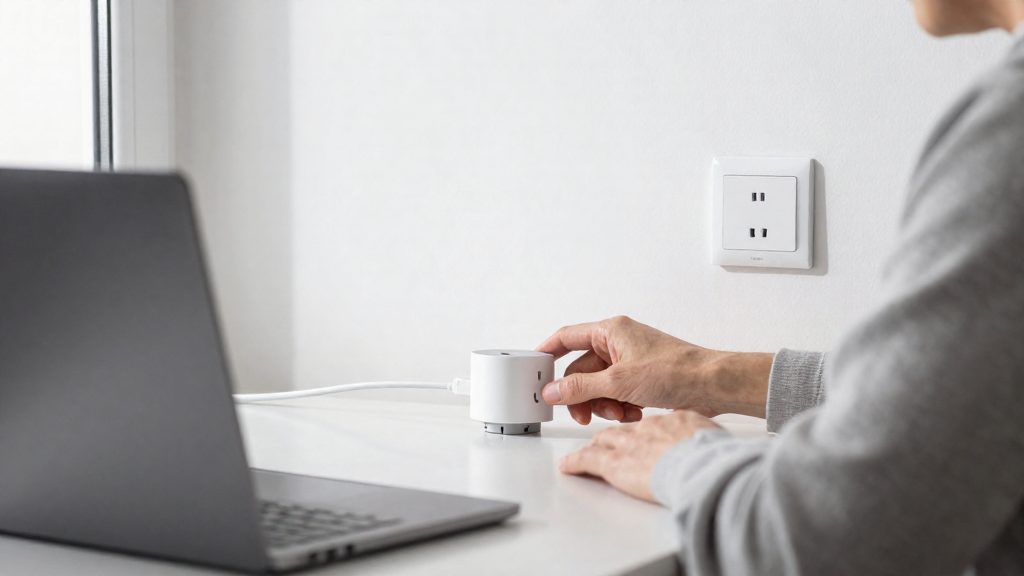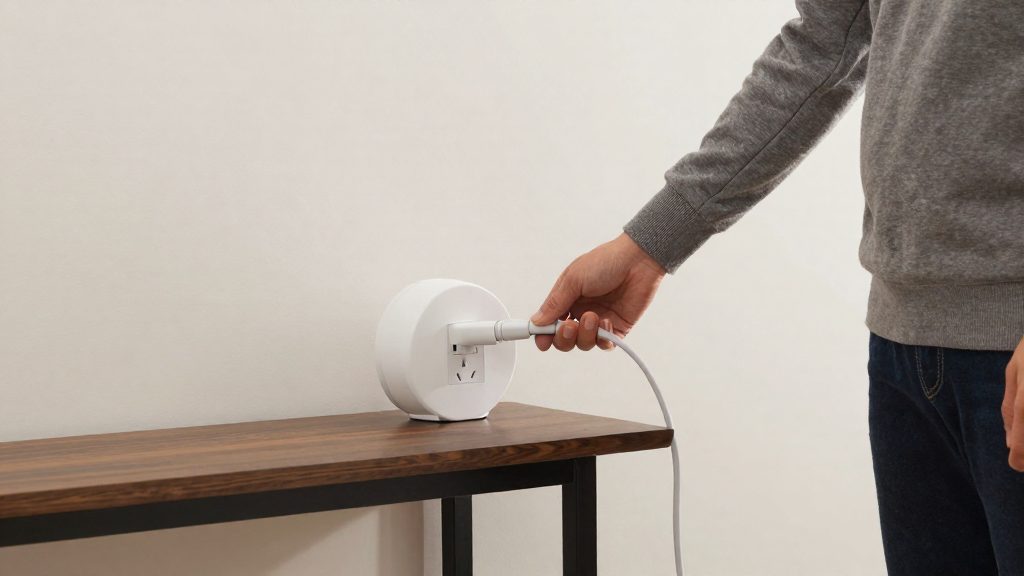
A home hub is the device that connects Matter accessories to the Apple Home app. It acts as a local relay: the Home app sends commands to the hub, and the hub passes them to the accessory. Once a hub is in place, it also supports remote access when you are away and carries out automations and scenes for everyone in the home.
What does a Matter hub do for Apple Home?
Local relay between accessories and Apple Home
In Apple’s setup, the hub receives commands from the app and forwards them to the accessory.
Remote access outside the home
The hub must stay at home, on Wi-Fi and powered on (Apple Support, 2026). If it is off or disconnected, remote control is unavailable until it is back online.
Automations and scenes for all members
Automations and scenes are tied to the home rather than to one person’s phone, and the hub carries them out, so they apply to every member’s devices. Adding a hub, however, is restricted to one account.
Which Apple devices work as a home hub?
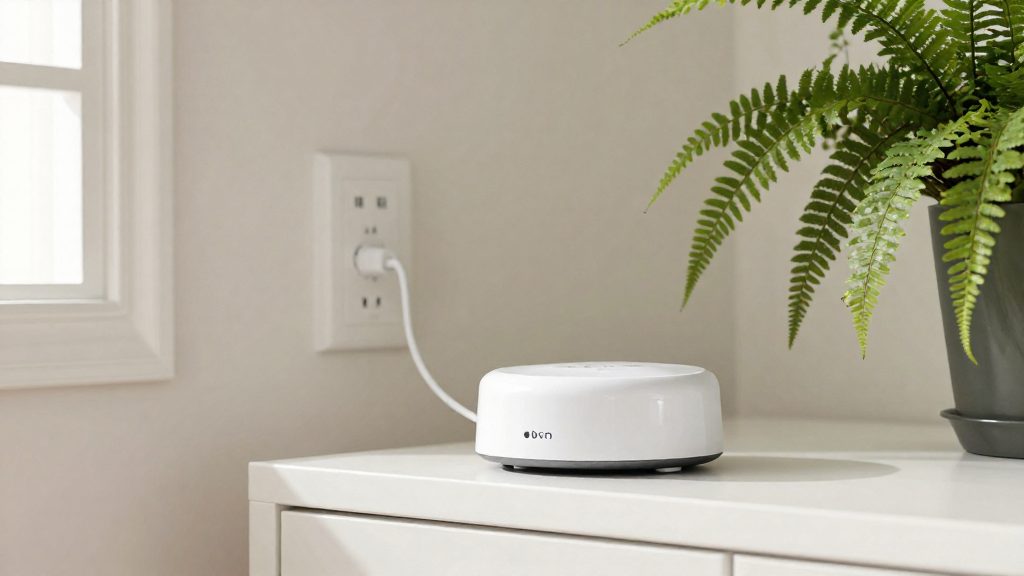
Apple Support (2026) names the HomePod mini, the HomePod and the Apple TV as home hubs. For Thread border router support, Apple’s page names only the HomePod mini and the Apple TV 4K (3rd generation) Wi-Fi + Ethernet. Matter Alpha (2026) also lists the HomePod (2nd generation) and the Apple TV 4K (2nd generation) as Thread border routers, but Apple does not confirm this.
| Device | Status |
|---|---|
| HomePod mini | Named as a hub by Apple Support (2026) |
| HomePod | Named as a hub by Apple Support (2026) |
| Apple TV | Named as a hub by Apple Support (2026) |
| HomePod (2nd generation) | Hub as a HomePod; Thread border router role listed in Matter Alpha (2026) only, not confirmed by Apple |
| Apple TV 4K (2nd generation) | Hub as an Apple TV once assigned to a room; Thread border router role listed in Matter Alpha (2026) only, not confirmed by Apple |
Do you need Thread or just Wi-Fi?
Whether you need a Thread border router depends on the radio the accessory uses, not on the Matter logo. Thread accessories cannot join your home network on their own. They use a low-power mesh that needs a Thread-enabled border router to bridge it to Wi-Fi and to Apple Home. According to Apple Support (2026), the HomePod mini and the Apple TV 4K (3rd generation) Wi-Fi + Ethernet act as Thread border routers, and a supported third-party border router can do the same job.
A Wi-Fi-only Matter accessory connects directly to your Wi-Fi network and needs no border router, but it still needs a home hub to be added to Apple Home.
| Accessory connection | Border router needed | Options named by Apple Support (2026) |
|---|---|---|
| Thread (Matter over Thread) | Yes | HomePod mini; Apple TV 4K (3rd generation) Wi-Fi + Ethernet; supported third-party border router |
| Wi-Fi (Matter over Wi-Fi) | No border router, but a home hub is still required to add the accessory | Any home hub (HomePod, HomePod mini or Apple TV) |
Before you buy a Thread accessory, confirm that you already have a Thread-enabled border router at home. If you only have Wi-Fi Matter devices, you can skip the border router requirement, but you still need a home hub.
How to set up a home hub (Canadian availability and prices not confirmed)
Before you can add a Matter accessory to Apple Home, three conditions must hold: the Apple Account must belong to the home owner with the right security settings, the hub must be at home, connected to Wi-Fi and powered on, and the Home app must be open to start pairing. According to Apple Support (2026), only the home owner can add a HomePod or Apple TV as a hub, and a home hub is required to add Matter accessories to the Home app.
Account and security requirements
The Apple Account used for setup needs two settings turned on:
- iCloud Keychain, which Apple requires for the hub setup.
- Two-factor authentication.
If either is off, turn it on in your Apple Account settings before starting.
Location, network and power
| Condition | What must be true |
|---|---|
| Location | The hub is physically at home |
| Network | The hub is connected to Wi-Fi |
| Power | The hub is powered on |
Apple Support (2026) gives these three conditions together, so check all of them before you begin. A hub that is off, or that is not on the home network, cannot complete the setup.
Setup steps in the Home app
- Power on the device you are adding.
- Open the Home app.
- Tap +, then choose Add Accessory.
- Scan the Matter code on the device or its packaging.
- Choose a room and give the device a name.
- Follow the on-screen prompts.
For a device from another ecosystem, tap More and type the pairing code by hand instead of scanning (Matter Alpha, 2026).
For an Apple TV, assign it to a room under Settings > AirPlay and Apple Home > Room. Apple Support (2026) states that an Apple TV becomes a hub only after this assignment. HomePod mini and HomePod become hubs automatically when set up.
How to add a Matter accessory to Apple Home
The steps below assume a home hub is already set up, and they cover code entry, room assignment, a reachability check and adding the accessory to automations.
Scanning the Matter setup code
Matter Alpha (2026) describes manual code entry for devices coming from another ecosystem:
| Method | When to use | Action |
|---|---|---|
| Type the pairing code | Device from another ecosystem | Tap More, then enter the pairing code by hand |
Assigning a room and confirming reachability
The room assignment determines where the accessory appears in the Home app, so a clear name prevents confusion when several accessories share a room type.
After setup, send one direct command from the Home app, such as switching the accessory on or off, and confirm the tile updates. The tile should reflect the new state without delay. If it does not respond, do not move on to automations yet.
Adding the accessory to automations
Once direct control works, open the Home app’s automation settings, then create a new automation or edit an existing one. Select the accessory as a trigger or as an action, save the automation, and run it once manually to verify the result.
Choosing the preferred hub (Canadian availability and CAD prices not confirmed)
Apple Home chooses the active hub for you by default. You can override that choice in the Home app by turning off Automatic Selection and selecting the hub yourself. The path is Home > More > Home Settings > Home Hubs & Bridges. Apple’s support page confirms this path for picking the active hub, but it does not describe how the automatic choice is made, so this section does not assume any specific selection criteria.
What Automatic Selection does
With Automatic Selection enabled, Apple Home assigns the active hub without user input. This is the default behaviour and suits homes where the hub’s identity does not matter for day-to-day control.
Turning off Automatic Selection
- Open the Home app and tap More.
- Tap Home Settings, then Home Hubs & Bridges.
- Turn off Automatic Selection.
- Select the hub you want to use as the active hub.
| Setting state | Who picks the active hub | When to use it |
|---|---|---|
| Automatic Selection on | Apple Home | Default; no hub preference |
| Automatic Selection off | You | You want a known, fixed hub |
Pinning one hub for automations
Pinning means turning off Automatic Selection and keeping one hub as the active hub. This gives you a single, known device to check when automations or Matter accessories behave unexpectedly. Choose a hub that is a permanent fixture of your home, such as a HomePod mini, and note which device you pinned.
Why won’t my Matter device pair?
Pairing can fail for several reasons, for example no active hub being available, the accessory not being in a state that accepts a new pairing, or the accessory being too far from the hub during setup. Check these in order before retrying, because repeating the same attempt under the same conditions rarely changes the result.
Verify the hub before retrying
To confirm the hub is ready, check the following:
| Check | Where to check | What to confirm |
|---|---|---|
| Active hub | Home > More > Home Settings > Home Hubs & Bridges | A hub is listed and active; turning off Automatic Selection is optional (Apple Support, 2026) |
If Automatic Selection is on, Apple Home chooses the hub itself. Turning it off lets you select the hub you want to use.
Reset the accessory to factory defaults
The reset method is set by the manufacturer, and no single procedure applies across brands. Use the reset steps in the manufacturer’s instructions or on the product label, and confirm the device is back in pairing mode before you start the Apple Home flow again. If the accessory was previously added to another app, check whether that manufacturer requires a reset before it can be added to a new home.
Move the accessory closer to the hub
Commissioning depends on a clear radio link between the accessory and the hub. Place the accessory near the hub for setup, then move it to its final location once it appears in Apple Home. The available sources give no distance figure, so test pairing in the same room as the hub first.