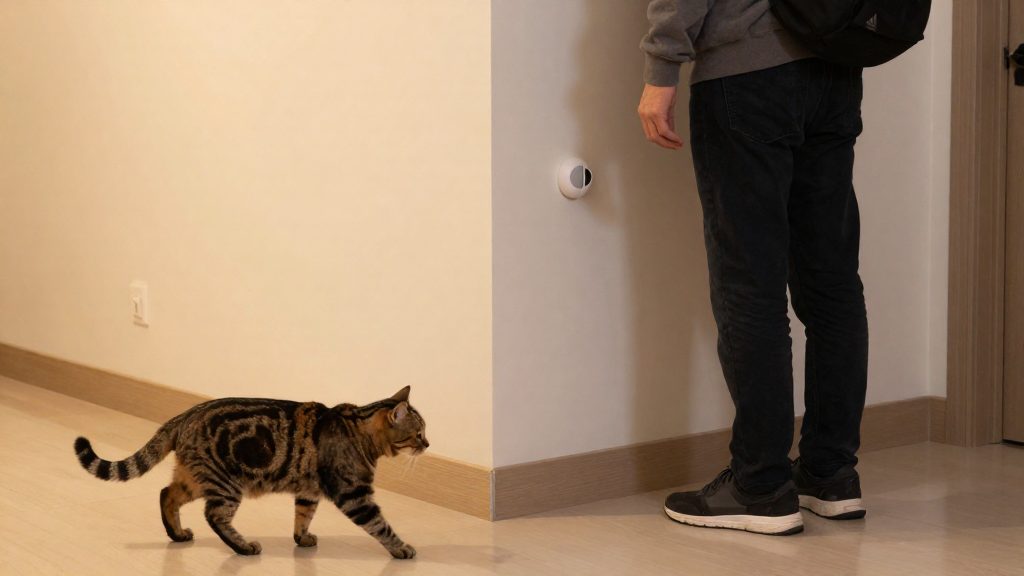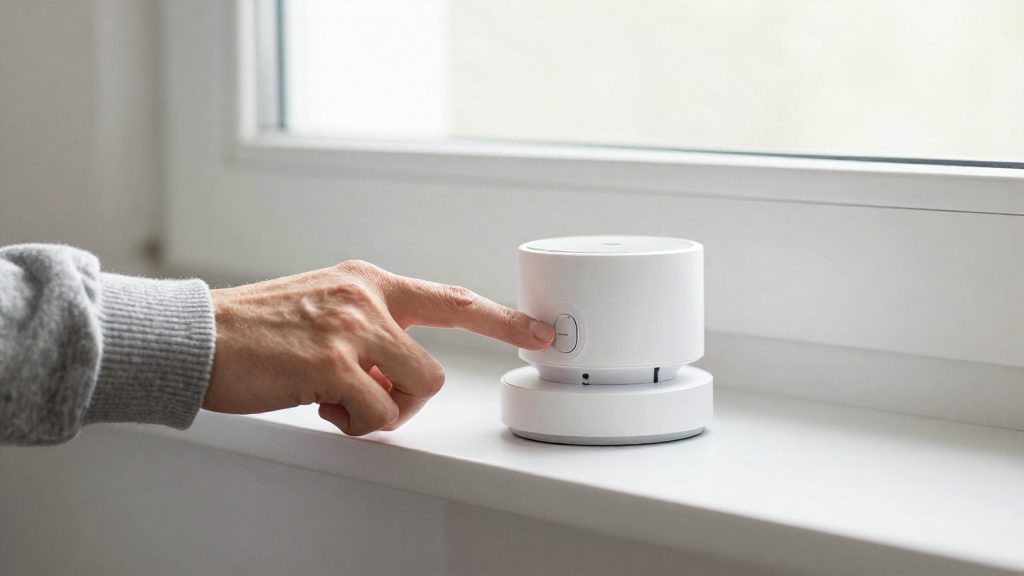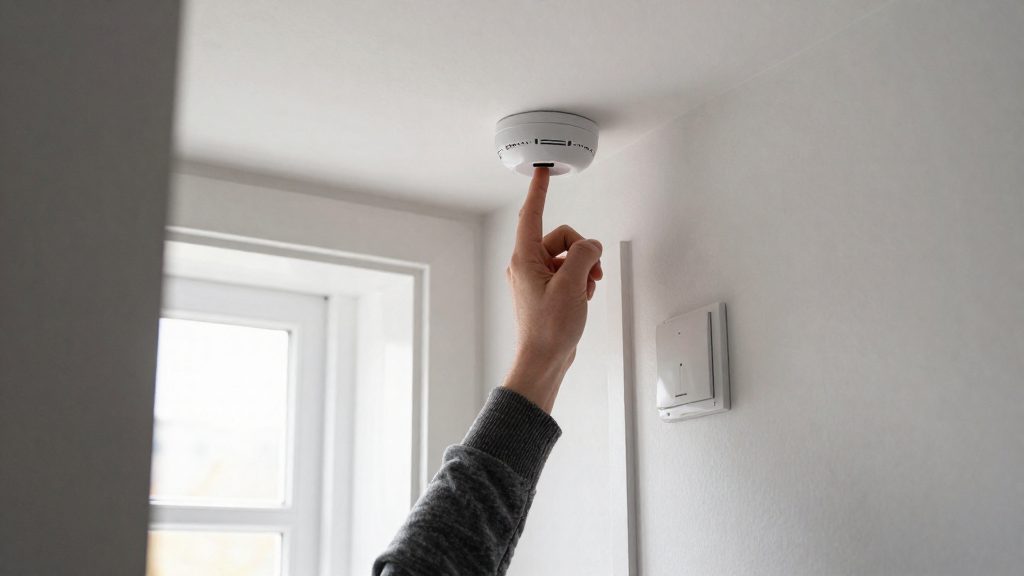
Motion-sensor systems turn a sensor’s detection into a Matter occupancy state, which a controller reads and uses to trigger actions. According to Matter Alpha (2026), Matter occupancy sensors detect and report presence in an area and can be used to automate lighting and security. The chain runs from the sensor to a Matter controller, such as a hub, speaker or streaming box, and then to the lights, plugs or locks being automated.
How a motion-sensor smart home system works
The Occupancy Sensing cluster and state reporting
Matter exposes motion sensors through an Occupancy Sensing cluster, so the sensor publishes a presence state rather than a raw motion event. Apple Home and Google Home therefore often label these devices “occupancy” instead of “motion” (Microcontrollers Lab, 2026). Sensitivity, zones and timeouts are usually configured in the manufacturer’s app, not in the controller (Microcontrollers Lab, 2026). The timeout sets how long an area stays reported as occupied after activity stops, so it directly controls when an automation turns off.
Matter Alpha’s directory lists Matter occupancy sensors from Aqara, Bosch, Eve, Meross, Shelly, SONOFF and Tuya (Matter Alpha, 2026).
Step-by-step data flow
- The sensor’s detector registers presence in its coverage area.
- The sensor updates the occupancy state in the Occupancy Sensing cluster.
- The update travels over Matter to a controller.
- The controller’s automation rule evaluates the new state, for example “occupied and after sunset: turn on the hallway light.”
- The controller sends commands over Matter to the target devices.
- Each target executes the command and reports its new state back to the controller.
Roles of hubs, controllers and cloud services
| Element | Function in the chain | Examples (Matter Alpha, 2026; Microcontrollers Lab, 2026) |
|---|---|---|
| Matter occupancy sensor | Detects presence and publishes the occupancy state | Aqara FP400, Bosch, IKEA MYGGSPRAY, Legrand Netatmo |
| Thread Border Router / Matter controller | Connects Thread sensors to the Matter network and hosts automations | Apple TV and HomePod models, Nest Hub, Echo, SmartThings hub, Aqara M3, Home Assistant with a Thread radio |
Controllers receive state updates and send commands. Whether the automation logic runs locally on the controller or relies on a cloud service depends on the brand and the platform, so check the manufacturer’s documentation. Whether a cloud service participates depends on the brand and the controller. Check the manufacturer’s instructions to see which functions need an online account. Also check that the model is sold in Canada and is certified for use there (ISED), because this article did not verify Canadian availability or certification.
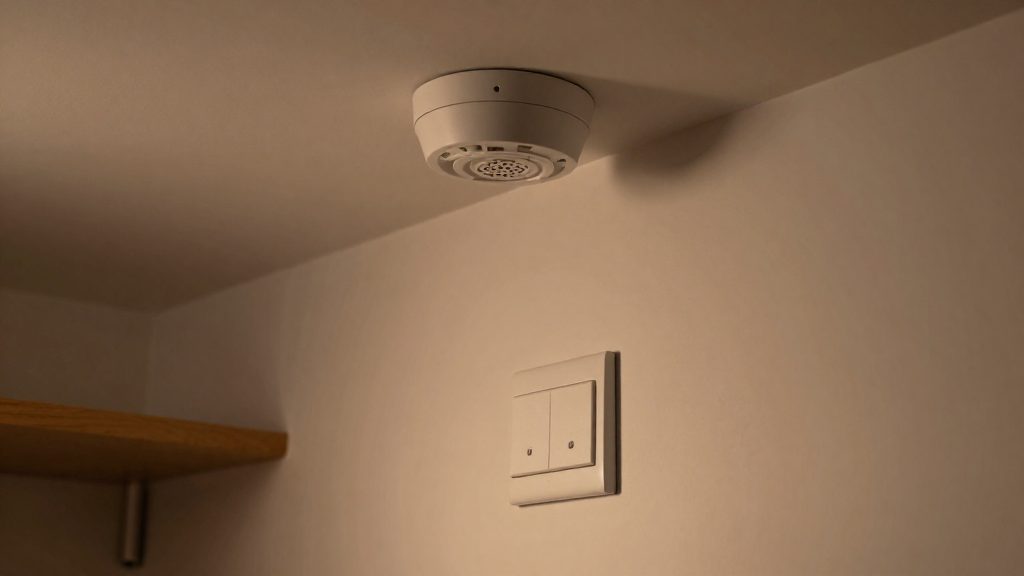
Thread, Zigbee or Wi-Fi for battery-powered motion sensors
For battery-powered motion sensors, Thread is a well-suited option: Matter Alpha (2026) lists several Thread motion sensors as Sleepy End Devices, a class designed for low-power operation. Zigbee is also low-power, and the Aqara FP400 supports Matter over both Thread and Zigbee. Matter Alpha (2026) lists Thread motion sensors in the Sleepy End Device class, which is designed for low-power operation. Wi-Fi devices tend to draw more power than Thread devices, so check the model’s battery specification.
Thread sleepy versus full end devices
Thread separates end devices into two classes by how their radio is used:
- Sleepy End Device: the radio sleeps most of the time and wakes periodically to poll its parent for queued messages. It does not relay traffic for other devices.
- Full End Device: the radio stays active, so the device is not limited to sleep cycles.
Matter Alpha (2026) classifies the following motion sensors:
| Motion sensor | Thread class listed |
|---|---|
| Bosch | Sleepy End Device |
| IKEA MYGGSPRAY | Sleepy End Device |
| Legrand Netatmo | Full End Device |
Because sleepy devices do not relay, adding battery sensors does not extend the mesh. Coverage depends on routers and full devices in the network.
Dual-protocol support: Aqara FP400
Matter Alpha (2026) reports that the Aqara FP400 multi-sensor supports Matter with both Thread and Zigbee. This applies to this model only. The radio actually used depends on the hub or controller in the home, so check which protocol the Aqara app and your hub expect before pairing. The manufacturer’s manual states how to choose or switch the protocol.
Wi-Fi drawbacks for battery-powered sensors
Some Wi-Fi sensors may use more energy than Thread sensors, depending on the design. Check the manufacturer’s battery specification and whether the model is battery-powered at all before choosing a Wi-Fi device for a battery-based installation.
Battery life reference
Microcontrollers Lab (2026), an affiliate-supported guide, quotes a one-to-three-year battery life for Thread sensors. This is the manufacturers’ figure, not an independent measurement, and it varies by model. Sharing one sensor across several ecosystems reportedly shortens it, but no independent test was found.
PIR or mmWave: which sensor do you need?
A PIR sensor reacts to movement, while a mmWave presence sensor can detect people who are not moving. According to Microcontrollers Lab (2026), PIR sensors detect movement only and can miss someone sitting still, whereas mmWave presence sensors detect still occupants but can be triggered by fans, curtains, or pets. The choice depends on how people use the room, not on which technology is newer.
How PIR fails
PIR sensors detect movement only, so they can miss someone sitting still and may then report the area as empty. This is the typical failure in a reading chair, a home office, or a bedroom where someone is lying down. The sensor works well in corridors and entryways, where people walk through continuously.
How mmWave covers still occupants
mmWave sensors perform presence sensing, which means they can register a person who is seated or lying still. Their coverage of stationary occupants is the main reason to choose them for rooms where people stay in one place.
Where mmWave gives false detections
According to Microcontrollers Lab (2026), mmWave presence sensors can be triggered by fans, curtains or pets. Microcontrollers Lab (2026) names three common sources:
- Ceiling or pedestal fans
- Curtains moving in airflow
- Pets
| Sensor type | Detects still occupants | Typical failure case |
|---|---|---|
| PIR | Not reliably, movement only | Sitting or lying still (can be missed) |
| mmWave presence | Yes | Fans, curtains, pets |
Model selection
Matter Alpha’s listings do not classify each model as PIR or mmWave, so check the manufacturer’s specification sheet for the sensing technology of the exact model before buying.
What hub or border router do you need?
Thread motion sensors need a Thread Border Router that also works as a Matter controller. Microcontrollers Lab (2026) lists the devices that fill this role: certain Apple TV and HomePod models, Nest Hubs, Echos, SmartThings hubs, the Aqara M3, and Home Assistant when it runs with a Thread radio. Without one of these devices in the home, a Thread-based Matter motion sensor has no border router to connect through.
Devices named as Thread border routers and Matter controllers
- Apple TV and HomePod: only certain models are named, so the exact model matters.
- Nest Hub: named as a Thread border router and Matter controller.
- Echo: named as a Thread border router and Matter controller.
- SmartThings hub: named as a Thread border router and Matter controller.
- Aqara M3: named as a Thread border router and Matter controller.
Home Assistant with a Thread radio
Microcontrollers Lab (2026) lists Home Assistant with a Thread radio as a possible Thread border router and Matter controller. Check the Home Assistant documentation for the exact hardware needed.
Motion-triggered automations that work
Three occupancy-based patterns cover most practical uses of a motion sensor: switching lights on and off, lowering heating when a room is empty, and alerting you when someone is detected while the home should be empty. Each follows the same logic: a trigger (the occupancy state changes), a condition (time, mode, or another device’s state), and an action (a command sent to a device).
Lighting on occupancy with off-delay logic
The lighting pattern uses two linked automations:
- Turn on: trigger = occupancy detected; condition = light is off; action = turn on the light.
- Turn off: trigger = occupancy clear; wait for the off-delay; action = turn off the light.
The off-delay is the key setting. A delay that is too short switches the light off while someone is still in the room.
Presence-based heating setback through thermostat integration
This pattern lowers the heating target when a room or the home is unoccupied and restores it on return:
| Occupancy state | Trigger | Thermostat action |
|---|---|---|
| Clear for the full delay | Occupancy clear, timer elapsed | Switch to the setback setpoint |
| Detected | Occupancy detected | Restore the comfort setpoint |
| Detected during scheduled away hours | Occupancy detected plus schedule condition | Restore the comfort setpoint and hold it |
The heating off-delay should be longer than the lighting delay. A short gap would cause the thermostat to step between setpoints every time someone leaves a room briefly. Check whether your thermostat’s own schedule, or a hold or override mode, conflicts with the occupancy automation before you enable it.
Security alerts when occupancy is detected while away
This pattern sends a notification only when the home is in an away state:
- Trigger: occupancy detected.
- Condition: home mode is “away” (for example, the security system is armed, or no household member’s phone is in the home zone).
- Action: send a push notification to the owner’s devices, and, if a camera covers the same area, send a snapshot with it.
The condition is what prevents an alert on every normal movement at home. If household members are not tracked by phone presence, exclude their routine times with a schedule condition instead. Test the automation by triggering the sensor yourself while the mode is set to away, and confirm the notification arrives on every device you use.
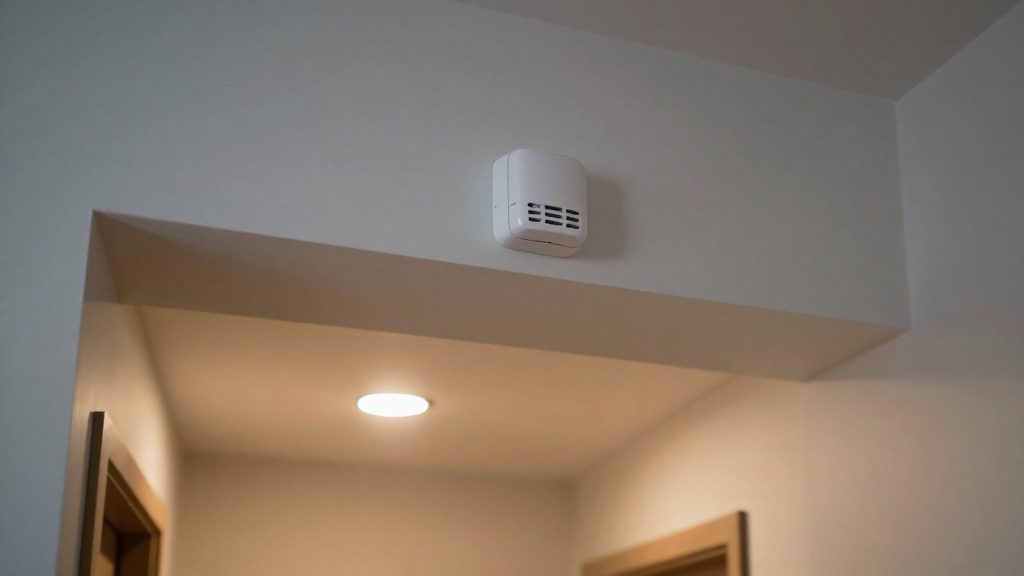
How do you set up and troubleshoot motion sensors?
Setting up a motion sensor in a Matter-based system follows a short sequence: add the device to your controller with its setup code, then tune its sensitivity, zones and timeouts in the manufacturer’s app.
Matter pairing and commissioning
Matter devices are added through the controller app (Apple Home, Google Home, SmartThings or Home Assistant) using the setup code printed on the device or its packaging, or the QR code it carries.
- Power the sensor and confirm it is in pairing mode, as described in its manual.
- In your controller app, choose the option to add a Matter device and scan the QR code or enter the manual setup code.
- Assign the sensor to a room, which the controller uses for grouping and automations.
⚠️ Avoid: Keep the setup code private. Someone who has it could try to add the device to their own controller, depending on the device’s state.
Sensitivity, zone and timeout configuration
Check the manufacturer’s app after pairing, because a sensor that works in the controller may still be using factory defaults.
- Sensitivity: adjusts how readily the sensor reports movement. Depending on the manufacturer, a lower value may reduce false triggers and a higher value may catch subtler motion.
- Zones: on sensors that support them, restrict detection to part of the field of view, such as a doorway, excluding areas with moving objects.
- Timeout: set it to match the task, for example a longer hold for a room where people sit still.
Diagnosing missed detections and phantom triggers
| Symptom | Likely cause | First check |
|---|---|---|
| Sensor never reports occupancy in a still room | PIR limitation or timeout too short | Raise timeout, then test with slow movement |
| Lights switch on with no one present | Sensitivity too high or moving object in view | Lower sensitivity, restrict zone away from fans or curtains |
| Triggers stop after a period | Sensor offline or Thread route lost | Confirm the device is online in the controller |
Are motion sensors a privacy risk?
What occupancy data reveals
A motion sensor reports presence, not identity. A timestamped log of presence is still enough to show when a home is occupied and when it is empty. Over several days, the sequence of events can outline a daily routine: when rooms are used, when the home is quiet, and the long gaps that suggest nobody is home.
The sensor technology changes how much detail the log contains. According to Microcontrollers Lab (2026):
| Sensor type | What the log captures | Privacy implication |
|---|---|---|
| PIR | Movement only; can miss a person sitting still | Records movement timing, with gaps during stationary periods |
| mmWave presence | Still occupants as well as movement | Closer to a continuous occupancy record |
Local processing versus cloud upload
Where an occupancy event goes depends on the device path, not only on the sensor. Events reach the controller first. Whether it, or the manufacturer’s app, forwards events to a cloud service is set by each manufacturer and platform. This article does not verify the cloud behaviour of individual models, so check each product’s privacy documentation.
To test a setup, disconnect the controller from the internet for a short period and trigger the sensor. If automations that depend on it stop, the event path may rely on an outside service. If they keep running, the logic may be handled locally, but the device or app may still send data to the cloud. This test alone does not show that no data leaves your home, so also check each product’s privacy documentation.
Account, firmware and sharing controls
Access to occupancy data is controlled by three layers:
- The owner account in the manufacturer’s app, which holds the sensor’s configuration.
- Firmware, which should be updated through the manufacturer’s app and checked after each update.
- Sharing permissions granted to other users, household members, or ecosystems such as Apple Home and Google Home.
Practical steps:
- Review member and sharing lists in the manufacturer’s app and in each controller app.
- Remove accounts for guests, tenants or service providers who no longer need access.
- Use a single owner account, with two-factor authentication where the app supports it.
- Confirm the firmware version after each update.