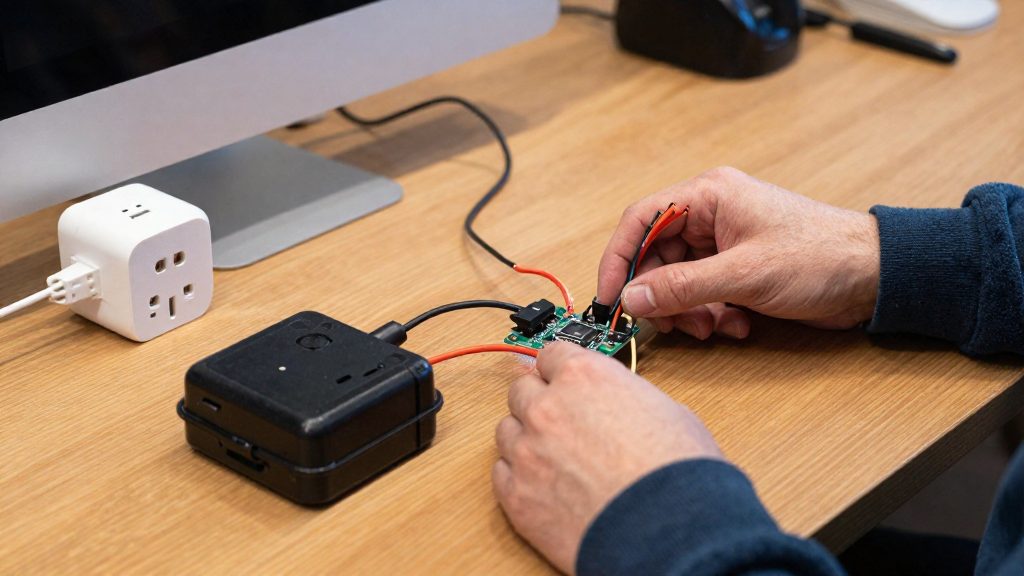
Home Assistant suits beginners who want control over their devices without depending on a vendor’s servers, and Home Assistant Green is the simplest way to start. SmartThings suits beginners who mostly own Samsung-compatible devices and accept cloud-based control in exchange for a single app. The deciding factors are how much local control you need, the ongoing subscription cost, and how much each setup depends on the cloud.
Home Assistant vs SmartThings: the short answer
Core difference: local control versus cloud-based simplicity
- Local control: Home Assistant can run its automations on your own hardware. Its SmartThings integration is classed as Cloud Push, so it relies on the SmartThings cloud (Home Assistant (Open Home Foundation), 2026).
- Linking both platforms therefore does not give you local control of SmartThings-linked devices.
- Whether Home Assistant keeps working during an internet outage depends on the integrations you use. Check each integration’s documentation before relying on it.
Verdict by beginner profile
| Beginner profile | Better fit | Reason |
|---|---|---|
| Wants local control and fewer cloud dependencies | Home Assistant | Local control depends on the integrations used |
| Mostly Samsung devices, accepts cloud control | SmartThings | Cloud-based integration, single vendor app |
| Mixed brands, wants automations beyond one vendor app | Home Assistant | Platform supports many integrations |
Subscription and cloud dependence
SmartThings access through Home Assistant carries a future cost. According to Home Assistant’s integration page (Home Assistant (Open Home Foundation), 2026), from October 2026 SmartThings API access will require a paid Personal Plan at $4.99/month. Otherwise, users must migrate devices such as local Zigbee or Z-Wave devices to avoid service disruption. Verify this on Samsung’s current SmartThings terms and confirm whether it applies in your country, since the figure is cited from Home Assistant’s page.
Recommended starting point for most newcomers
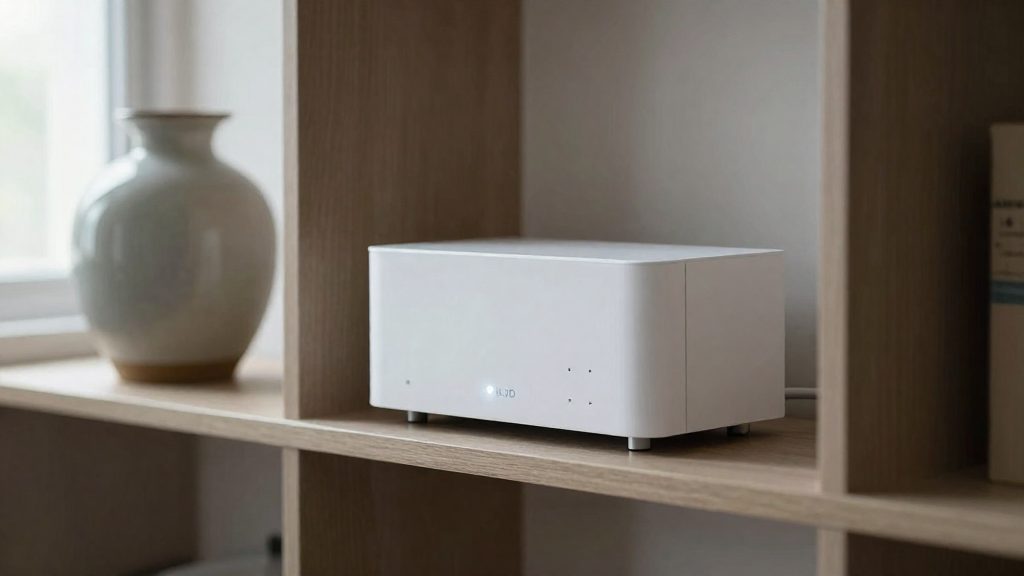
Home Assistant Green is the easiest entry point. It ships with Home Assistant Operating System preinstalled, and Home Assistant recommends this installation type for most users because it is the easiest to install and maintain and supports add-ons (Home Assistant (Open Home Foundation), 2026).
Choose SmartThings instead if you already run a Samsung-centred setup, do not need local control, and prefer one vendor app over running your own hub.
What does each platform actually do?
SmartThings is Samsung’s cloud-centred hub and app ecosystem. It is operated through the SmartThings app, which requires a Samsung account. Home Assistant is a local automation server that runs on hardware in your home and extends its features through add-ons. Home Assistant Green ships with Home Assistant Operating System (HAOS) preinstalled.
| Aspect | SmartThings | Home Assistant |
|---|---|---|
| Core model | Cloud-centred hub and app ecosystem | Local automation server |
| Entry point | SmartThings app, tied to a Samsung account | HAOS, preinstalled on Home Assistant Green |
| Extensions | Samsung-managed ecosystem | Add-ons, available on HAOS |
Automation builders: triggers, conditions and actions
Both platforms build automations from the same three parts:
- Trigger: the event that starts the automation, such as a device changing state, a sensor reporting, or a scheduled time.
- Condition: a check that must pass before the automation continues, such as a time window or a device being in a given state.
- Action: what the automation does, such as switching a plug, changing a light level, or sending a notification.
The difference lies in the scope of the triggers and actions. SmartThings automations draw on the devices and services registered in the SmartThings app. Home Assistant automations can use any entity it exposes, and the available set grows as you install integrations and add-ons. Because Home Assistant runs locally, you can also combine entities from different brands in one automation, provided each brand is integrated into Home Assistant.
Which is easier to set up for a beginner?
For a first device, Home Assistant Green is the simpler route. According to Home Assistant (Open Home Foundation, 2026), it ships with Home Assistant Operating System preinstalled, so setup means connecting power and your network. A DIY Raspberry Pi install adds hardware and software steps. SmartThings starts with the SmartThings app and a Samsung account, so account sign-in comes before any device pairing.
| Path | What you need | First-run steps |
|---|---|---|
| Home Assistant Green | The device, with Home Assistant Operating System preinstalled | Connect power and your network |
| Raspberry Pi DIY install | A Raspberry Pi 4 or 5 with at least 2 GB of RAM, a power supply, a microSD card and an Ethernet connection | Install Home Assistant yourself before any first-run setup |
| SmartThings | The SmartThings app and a Samsung account | Sign in to the Samsung account in the app, then pair each device from the app |
Home Assistant Green: power and network
The Green is the lowest-effort start because no installation step is needed. Connect it to power and to your router by network cable or Wi-Fi, following the manufacturer’s instructions for your model. The Operating System is already on the device, so you skip the image-writing and installer steps that the Raspberry Pi path requires.
Raspberry Pi: hardware checklist
The Home Assistant documentation lists the minimum DIY hardware: a Pi 4 or 5 with at least 2 GB of RAM, a power supply, a microSD card and an Ethernet connection. Gather all four before starting, because a missing part stops the install partway through.
SmartThings: Samsung account and app pairing
The Home Assistant SmartThings integration requires a Samsung account and the SmartThings app, according to Home Assistant (Open Home Foundation, 2026). Create or sign in to the Samsung account in the app first, then add each device through the app’s pairing flow. Put the device into pairing mode using its own instructions. Setup steps and sign-in screens can differ by country, so check Samsung’s SmartThings support pages for your region.
Does Home Assistant really work without the cloud?
Partly. Home Assistant can run automations on your own hardware, but whether a given device keeps responding during an internet outage depends on the integration that device uses. Devices linked through the SmartThings integration are the clearest case of cloud dependence.
Local automations on Home Assistant
Whether an automation keeps working during an outage depends on whether every entity it references comes from a local integration.
SmartThings Cloud Push and its consequences
In practice, if the SmartThings cloud cannot be reached, expect those devices to be unavailable from Home Assistant.
Cost and migration pressure
The Home Assistant integration page states that from October 2026, SmartThings API access will require a paid Personal Plan at $4.99/month. This figure comes only from Home Assistant’s page and has not been confirmed on a Samsung/SmartThings page, or for Canada. Check Samsung’s current terms.
What will it cost you in Canada?
Home Assistant is open-source, so the core software costs nothing to install. Your main expense is hardware: either a dedicated Home Assistant device or a DIY single-board computer. The only recurring fee found in the Home Assistant pages used for this article is the one for SmartThings API access through the integration. Home Assistant also offers optional paid services, such as Home Assistant Cloud, that were not priced here. SmartThings’ own Canadian pricing is not confirmed. Canadian pricing for every item is not confirmed here, so check current prices before budgeting.
Home Assistant hardware options
| Option | Hardware you buy | What you get |
|---|---|---|
| Home Assistant Green | The Green device, a power connection and your network | Home Assistant OS preinstalled, add-on support |
| DIY Raspberry Pi | Pi 4 or Pi 5 with at least 2 GB RAM, power supply, microSD card, Ethernet connection | Home Assistant installed by you, add-on support with Home Assistant OS |
For a DIY build, buy the components as a set and compare the CAD total, including shipping and taxes, across Canadian retailers.
Software and install type
The install type affects ongoing effort, not the purchase price:
- Container install has no add-on support, you handle updates yourself, and Thread and Z-Wave are not supported out of the box. Choose it only if you accept those limits and want to manage updates manually.
SmartThings API fee
If the $4.99/month Personal Plan cited by Home Assistant applies to you (currency and Canadian availability unconfirmed), it would come to $59.88 per year. It would be the cost of SmartThings API access, not of the hardware. Check Samsung’s Canadian pricing.

Which protocols does Home Assistant support, and what is unconfirmed for SmartThings?
Home Assistant reaches devices directly through the radios on its host and through integrations, so the protocols you can use depend on the installation type and the hardware you add. Home Assistant OS ships preinstalled on Home Assistant Green and supports add-ons, which is how most radio software is added.
| Installation type | Add-on support | Thread and Z-Wave out of the box |
|---|---|---|
| Home Assistant OS (Home Assistant Green) | Yes | Not stated in the sources used; check the documentation and the radio hardware required |
| Container | No | No |
Radio hardware for Zigbee and Z-Wave
To control Zigbee or Z-Wave devices directly, you need a USB coordinator stick that matches the protocol and plugs into the host running Home Assistant. Confirm that the stick is compatible with your installation type and the relevant Home Assistant integration documentation before you buy it, because the software that drives the radio must also be available on your setup.
SmartThings: reach through the cloud
Home Assistant connects to SmartThings through a Cloud Push integration. Home Assistant therefore does not reach SmartThings-linked devices over their radios directly.
Protocol support on the SmartThings side
I could not confirm from primary sources which hub models SmartThings sells, or which of Matter, Thread, Zigbee, Z-Wave and Wi-Fi its hubs support in your country. Check the SmartThings product page for your region before buying a hub or device, and compare each device’s listed protocol against the table above.
Privacy and data: what should you know?
The two platforms handle data differently. Home Assistant analytics is opt-in: it sends nothing unless you enable it, and you can turn it off at any time. According to Home Assistant (Open Home Foundation) (2026), only aggregated, anonymized totals are published, and the project does not store personal information on its servers unless a service requires it. SmartThings works differently because its integration ties device activity to a Samsung account and routes it through the SmartThings cloud.
Home Assistant analytics
- Opt-in: the analytics integration stays off until you enable it.
- Scope: only aggregated, anonymized totals are published.
- Control: you can disable it at any time from your Home Assistant settings.
SmartThings and the Samsung account
Your SmartThings-linked devices send their activity through Samsung’s servers, and Home Assistant’s own analytics setting does not change that.
Local storage versus cloud retention
| Data location | What it covers | Who controls retention |
|---|---|---|
| Home Assistant database | History and logs from devices and automations that Home Assistant runs | You, through the recorder settings on your own hardware |
| SmartThings cloud | Device events from SmartThings-linked devices | Samsung, under its privacy policy |
- Home Assistant: the history database sits on the device you run Home Assistant on, so you decide how long it is kept by adjusting the recorder integration in your configuration.
- SmartThings: the retention period for cloud-side event logs is not stated in this article. Check Samsung’s privacy policy and the account privacy options in the SmartThings app for current details.
Can you use both together?
Yes. The Home Assistant SmartThings integration connects the two platforms, but it is Cloud Push: it does not give local control of the linked devices. Only devices you reconnect through a local integration in Home Assistant can work locally (Home Assistant (Open Home Foundation), 2026).
What stays cloud-dependent
- Any device reached through the SmartThings integration keeps depending on the SmartThings cloud, even when Home Assistant displays and automates it.
- Automations that trigger or control those devices stop working if the SmartThings service is unavailable.
- Home Assistant’s own local automations cannot make a cloud-linked device respond faster or without internet access.
Migrating local Zigbee and Z-Wave devices
| Device path | Control in Home Assistant | Transition action |
|---|---|---|
| Zigbee or Z-Wave device paired to a SmartThings hub | Depends on the SmartThings setup; not confirmed here | Migrate to a Home Assistant Zigbee or Z-Wave connection to avoid disruption |
| Device connected through the SmartThings integration | Cloud Push, relies on the SmartThings cloud | Keep until replaced or moved to a local integration |
Which devices to keep on SmartThings during transition
Keep a device on SmartThings when:
- It has no working local connection in Home Assistant yet.
- Other routines or scenes still depend on it and are not yet rebuilt.
- You need the SmartThings app for its setup or firmware updates.
Check each device’s integration in Home Assistant before changing anything. Devices listed under the SmartThings integration are cloud-dependent. Devices listed under a Zigbee or Z-Wave integration in Home Assistant are generally local, but check each integration’s documentation before moving them.