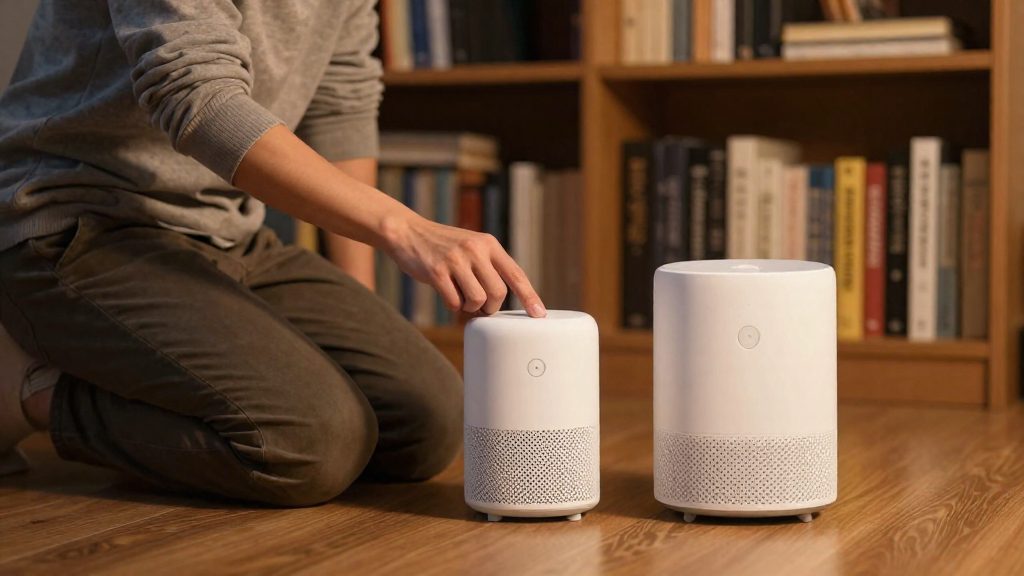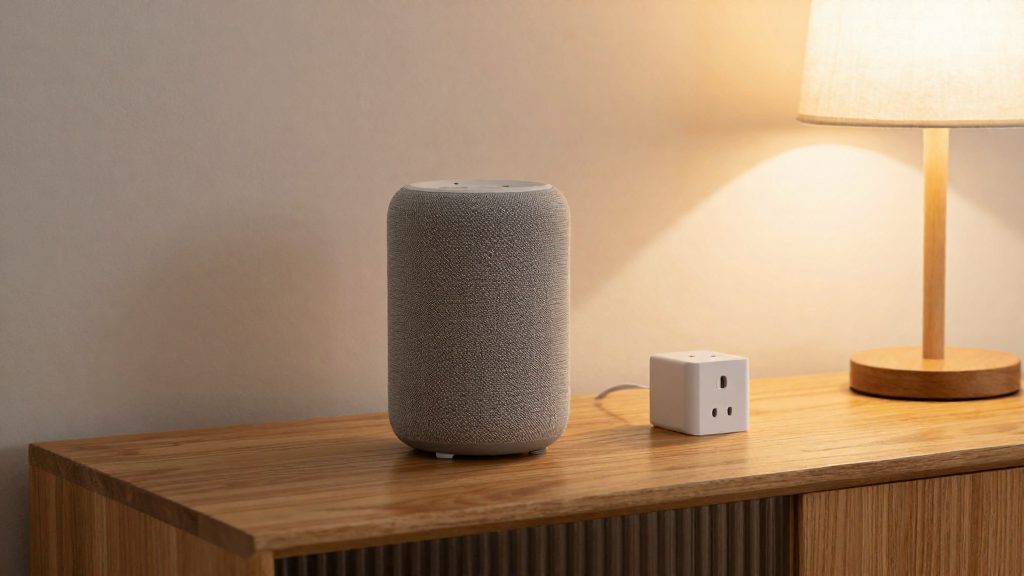
“Works with Google Home” and “Works with Alexa” are manufacturer claims, not proof that a device runs natively on both platforms. A product can be supported on one assistant through a vendor cloud integration, on another through Matter, and not at all on a third. Matter, the shared standard backed by Amazon, Apple, Google and Samsung, is the main route to native support on both platforms, but a Matter logo confirms only the protocol, not the feature set or hub requirements in each app.
What the badges actually claim
A badge tells you the maker has chosen to advertise compatibility with that assistant. It does not specify how the connection works, which features are included, or whether the device needs an additional hub. Read the badge as the start of your check, not the end.
To verify a claim:
- Search the device’s exact model number in the Google Home or Alexa app’s supported-device list.
- Read the manufacturer’s setup instructions for the platform you use.
- Check the product label for a Matter logo, which indicates the device uses Matter.
Cloud skill linking versus native platform support
These are two different architectures, and they behave differently in daily use.
| Connection type | How a command reaches the device | Dependence on the vendor cloud |
|---|---|---|
| Cloud skill linking | Assistant sends the request to the vendor’s cloud, which then forwards it to the device | High; the vendor’s servers are part of every command |
| Matter in Google Home, at home | Google Home sends the command directly to the device over Wi-Fi or Thread | None for local control |
| Matter in Google Home, away from home | Command goes through the cloud, is verified by the Google Home hub, then sent to the device locally | Partial; cloud is used for the outside-the-home path |
According to Google Home Help (2026), Matter commands at home go directly to the device without the cloud. This means a Matter device controlled inside the home can keep working through the local path, while cloud-linked devices depend on the vendor’s service being available.
Matter in Google Home has specific requirements:
| Requirement | Detail |
|---|---|
| Account | A Google Account |
| Router setting | Home Wi-Fi network with IPv6 enabled on the router |
| Hub | A Matter-enabled Google Home hub |
| Device | A Matter-enabled device, identified by the Matter logo |
| Thread devices | A Thread Border Router |
Source: Google Home Help (2026).
Why a logo does not guarantee both platforms
A Matter logo does not mean the device is equally supported on Google Home and Alexa. Several gaps are documented:
- Separate hubs per app: Matter multi-admin lets one device work with several Matter-certified apps, but each app needs its own compatible hub, according to Google Home Help (2026).
- Uneven test acceptance: In January 2025, the Connectivity Standards Alliance agreed that Apple, Google and Samsung would accept its Interop Lab test results for their Works With programs. Apple accepted them immediately, Google and Samsung planned to follow later in 2025, and Amazon Alexa was not part of the announcement, according to Matter Alpha (2025-01-06).
- Category scope: Matter 1.0 covered blinds, door locks, garage door openers, lights, hubs, smart plugs, thermostats and some sensors. Cameras, robot vacuums and smoke detectors were not yet included, according to AARP (2023-01-05). A camera or robot vacuum with a compatibility claim therefore relies on a non-Matter route for that category at the time of that source.
Is Matter the easiest way to get both?
Matter is the closest thing to a shared route, but it does not make a device work everywhere automatically. A Matter device can be controlled from Google Home and Amazon Alexa, but the result depends on each platform’s Matter support, the hub each app requires, and whether you accept cloud routing when you are away from home. Matter removes the need to buy a separate version of the same product for each ecosystem, which is its main advantage in a mixed household.
One device, several controllers
Multi-admin lets one Matter device work with several Matter-certified apps, such as Apple Home or Amazon Alexa, alongside Google Home. Each app needs its own compatible hub, and status updates appear in every connected app (Google Home Help, 2026). The device itself is not duplicated; each platform simply gets its own connection to it.
Certification and Works With status
Matter certification is overseen by the Connectivity Standards Alliance (CSA). In January 2025, the CSA agreed with Apple, Google and Samsung that they would accept its Interop Lab test results for their Works With programs, so a manufacturer can test once. Apple had already accepted them, while Google and Samsung planned to follow later in 2025. Amazon Alexa was not part of that announcement (Matter Alpha, 2025-01-06). Because this status is dated, check the current Works With listing for each platform before buying.
Local control versus cloud fallback
Google Home routes Matter commands differently depending on location:
| Situation | Command path in Google Home |
|---|---|
| At home | Direct to the device over Wi-Fi or Thread, without the cloud |
| Away from home | Through the cloud, verified by the Google Home hub, which then sends it to the device locally |
Google Home also requires a Google Account and a Matter-enabled Google Home hub, so remote control depends on both the cloud service and that hub (Google Home Help, 2026).
Limits across ecosystems
- Device coverage: Matter 1.0 covered blinds, door locks, garage door openers, lights, hubs, smart plugs, thermostats and some sensors. Cameras, robot vacuums and smoke detectors were not yet included (AARP, 2023-01-05).
- Platform choice: Matter is backed by Amazon, Apple, Google and Samsung, but you still choose a platform such as Alexa, Apple Home, Google Home or SmartThings (AARP, 2023-01-05).
- Existing products: Non-Matter products can connect through bridges, which is a different route from native Matter support.
- Security: Matter devices must be authenticated and encrypted and should support over-the-air security updates (AARP, 2023-01-05).
Which smart home devices work with both?
The reliable way to find devices that work with both Google Home and Alexa is to look for the Matter logo. Matter is backed by Amazon, Apple, Google and Samsung and overseen for certification by the Connectivity Standards Alliance (AARP, 2023-01-05). A Matter device is built to be added to several ecosystems, but you still choose a platform such as Alexa or Google Home for control (AARP, 2023-01-05).
Matter 1.0 covers some device types and leaves others out:
| Category | Matter 1.0 status |
|---|---|
| Lights | Covered |
| Smart plugs | Covered |
| Door locks | Covered |
| Thermostats | Covered |
| Blinds | Covered |
| Garage door openers | Covered |
| Hubs | Covered |
| Some sensors | Covered |
| Cameras | Not included at 1.0 |
| Robot vacuums | Not included at 1.0 |
| Smoke detectors | Not included at 1.0 |
This article does not list specific models, because Matter support varies by product and firmware. Confirm each exact model on its packaging or the manufacturer’s compatibility page, and check it in both the Google Home and Alexa apps before buying. Confirm the exact model and its Matter support on the packaging or the manufacturer’s compatibility page before buying, because a brand’s range can mix Matter and non-Matter versions.
Platform caveats
- Alexa is not in the Interop Lab agreement. In January 2025, the CSA agreed with Apple, Google and Samsung to accept its Interop Lab test results for their Works With programs. Amazon Alexa was not part of that announcement (Matter Alpha, 2025-01-06).
- Google Home needs its own prerequisites. Matter setup in Google Home requires a Google Account, IPv6 enabled on the home router, a Matter-enabled Google Home hub and a Matter-enabled device (Google Home Help, 2026).
- Remote control depends on a hub. Away from home, Google Home Matter commands go through the cloud and are verified by the Google Home hub before being sent locally to the device (Google Home Help, 2026).
Do you need a hub or Thread border router?
Whether you need a hub or a Thread border router depends on the protocol the device uses. Google Home requires a Thread Border Router for Thread devices, and Matter devices in Google Home rely on a Matter-enabled Google Home hub for remote control. Wi-Fi-only devices connect without either, while Zigbee and Z-Wave products need a bridge.
Requirements by connection type
| Device connection | Hub or border router needed? | Source and detail |
|---|---|---|
| Matter over Wi-Fi | Matter-enabled Google Home hub required for Matter in Google Home; it also verifies commands sent away from home | Google Home Help (2026): commands go through the cloud and are verified by the hub, which then sends them locally |
| Matter over Thread | Thread Border Router required | Google Home Help (2026) |
| Wi-Fi only, non-Matter | No hub or border router required for the Wi-Fi link | Check the manufacturer’s instructions for cloud or app control |
| Zigbee or Z-Wave | A bridge is needed to connect the product | AARP (2023-01-05): existing products can connect through bridges |
Thread devices and border routers
A Thread Border Router links the Thread mesh network to your home Wi-Fi. Google Home Help (2026) lists it as a requirement for Thread devices, so sensors and bulbs that use Thread need one in the home before they can be added. Matter in Google Home also needs a Google Account, a home Wi-Fi network with IPv6 enabled on the router, and a Matter-enabled Google Home hub.
Zigbee and Z-Wave products
Zigbee and Z-Wave devices use their own radio protocols, so they usually reach Google Home and Alexa through a hub or bridge, unless the assistant device itself has a built-in radio for that protocol. A bridge translates those signals into a format the assistant can use. AARP (2023-01-05) notes that existing products can connect through bridges as Matter works alongside Zigbee and other protocols.
Matter coverage limits
Matter 1.0 covered blinds, door locks, garage door openers, lights, hubs, smart plugs, thermostats and some sensors. AARP (2023-01-05) reports that cameras, robot vacuums and smoke detectors were not yet included. For those categories, check the manufacturer’s instructions to confirm how the device connects before buying.
How do you set up one device in both apps?
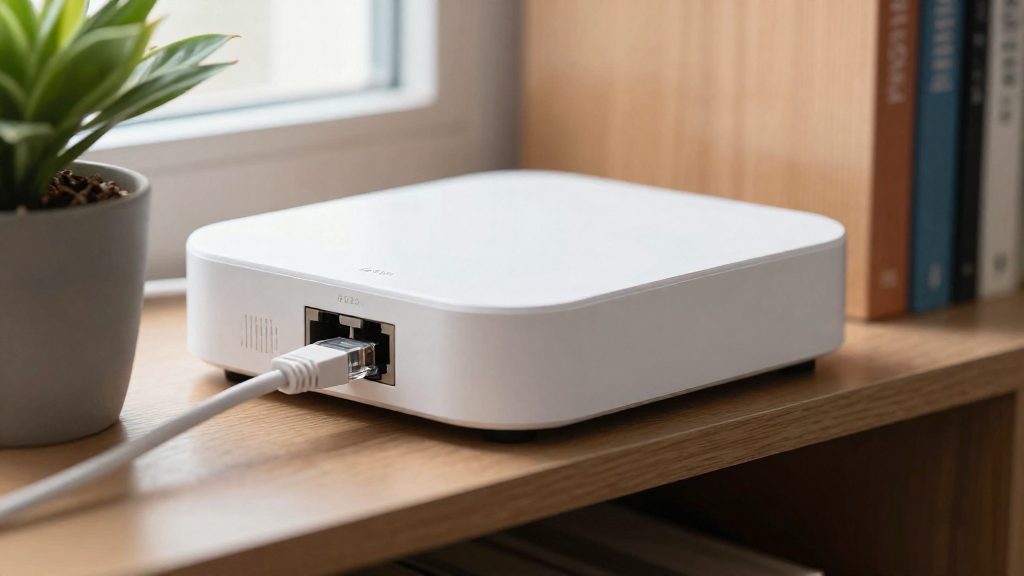
Adding one Matter device to Google Home and Alexa is a sequential process: you commission the device in Google Home first, then generate a second pairing code for Alexa. Each app has to be set up separately, but the device is only added to the Matter network once. The steps below assume the device carries the Matter logo and that your home meets Google Home’s requirements.
Step 1: Scan the Matter QR code in Google Home
Google Home adds Matter devices by scanning the QR code in its app. Before you start, confirm that you have:
- A Google Account
- A home Wi-Fi network with IPv6 enabled on the router
- A Matter-enabled Google Home hub
- A device with the Matter logo
Thread devices also need a Thread Border Router (Google Home Help, 2026).
Open the Google Home app, choose the option to add a device, and scan the Matter QR code printed on the device or its packaging. Keep the phone close to the device during commissioning.
Step 2: Generate a second pairing code for Alexa
After the device appears in Google Home, add it to Alexa using a second pairing code. Matter lets one device work with several Matter-certified apps, but each app needs its own compatible hub, so your Alexa setup must include one. Amazon Alexa was not part of the January 2025 CSA announcement on Interop Lab results, so check Amazon’s current device list before you buy.
Use the Matter option in the Alexa app’s add-device flow. If the device does not accept a new code, check the manufacturer’s instructions for opening its pairing window again.
Step 3: Confirm status sync across both apps
Status updates appear in every connected app. To verify, change the device state in Google Home, then check that Alexa shows the same state.
| Step | App | Action | Check |
|---|---|---|---|
| 1 | Google Home | Scan the Matter QR code | Device appears in the Google Home device list |
| 2 | Alexa | Add the device with the second pairing code | Device appears in the Alexa device list |
| 3 | Both | Change the state in one app | The other app shows the same state |
Why won’t my device show up in Google Home or Alexa?
A device usually fails to appear for one of three reasons: the home setup lacks a Matter prerequisite, the commissioning step (the handshake that adds a device to a Matter fabric) times out, or the device is not Matter-certified or runs outdated firmware. Account and region mismatches cause a fourth group of failures that look like device problems but are not. Work through these causes in that order, starting with the quickest to check.
Check the Matter prerequisites first
For Matter in Google Home, the setup needs a Google Account, a home Wi-Fi network with IPv6 enabled on the router, a Matter-enabled Google Home hub, and a Matter-enabled device. Thread devices also need a Thread Border Router (Google Home Help, 2026).
| Requirement | What to verify |
|---|---|
| Google Account | Same account signed in on the phone running the Google Home app |
| IPv6 on router | Enabled in the router’s admin settings; a missing setting blocks Matter pairing |
| Matter hub | Google Home hub that supports Matter |
| Matter device | Matter logo on the packaging or manufacturer listing |
| Thread devices | A Thread Border Router present on the network |
Commissioning timeouts and factory reset steps
Matter devices are added by scanning the QR code (or entering the setup code) in the Google Home app. If setup freezes, Google’s guidance is to restart the device, clear the app cache, restart the phone, and try again. If the problem persists, factory reset the device (Google Home Help, 2026).
A practical sequence:
- Confirm the device is powered and within range of the hub.
- Restart the device, then clear the Google Home app cache.
- Restart the phone and retry the QR code scan.
- If a device was previously paired with another app, reset it before retrying, since a stale pairing can block a new one.
- Factory reset only after the steps above fail, and use the manufacturer’s reset procedure, which is usually a long press on a dedicated button.
Device not Matter-certified or firmware outdated
Certification determines whether a product can join the Matter network at all. Matter 1.0 covered blinds, door locks, garage door openers, lights, hubs, smart plugs, thermostats, and some sensors. Cameras, robot vacuums, and smoke detectors were not yet included (AARP, 2023). A camera sold with a “works with” label may depend on its own manufacturer integration rather than Matter, because cameras were not part of Matter 1.0. Later Matter versions have expanded the categories, so check the exact model’s Matter support.
Matter devices must be authenticated and encrypted and should support over-the-air security updates (AARP, 2023). Before pairing, open the manufacturer’s app, check for pending firmware, and install it. An outdated device may fail commissioning even when it carries the Matter logo.
Alexa compatibility deserves a separate check. In January 2025, the Connectivity Standards Alliance reached an agreement with Apple, Google, and Samsung to accept its Interop Lab test results, but Amazon Alexa was not part of that announcement (Matter Alpha, 2025-01-06). Verify Alexa support directly rather than assuming it from a Matter label.
Account region and linked-skill mismatches
Device appears in the manufacturer’s app but not in Google Home or Alexa when the accounts differ. Check the following:
- The manufacturer account used in the device app matches the one linked to Google Home or Alexa.
- The Google Account or Alexa account is the one that owns the home where the hub is located.
- The integration or skill for the device is enabled in the Alexa app for that account.
- The app’s regional server matches the market where the device was sold. If the app only offers a different region, check the manufacturer’s instructions or contact its support team.
Privacy and security checks before you buy
Before you buy a smart home device for Google Home or Alexa, check four things: where its data is routed, whether it still works without the vendor’s cloud, how long it will receive firmware updates, and which permissions the linked assistant app holds. Matter certification helps with some of these checks but does not answer them. The manufacturer’s own product page, privacy policy and support pages are the only reliable sources for its commitments.
Cloud dependency and data routing
According to Google Home Help (2026), Matter commands in Google Home go directly to the device over Wi-Fi or Thread when you are at home, without passing through the cloud. Away from home, commands go through the cloud, are verified by the Google Home hub, and the hub then sends them to the device locally. A Matter device therefore still uses cloud routing when you control it remotely. For a device that is not Matter-certified, check whether the product page or manual says it can be controlled locally. If it does not, assume every command depends on the vendor’s servers.
Firmware update commitments and end-of-support
AARP (2023-01-05) reports that Matter devices must be authenticated and encrypted and should support over-the-air security updates. The word “should” describes an expectation, not a guarantee for each product. Look on the manufacturer’s support pages for a published statement on security updates and an end-of-support date. If neither is published, contact the manufacturer in writing before purchase and keep the reply.
Vendor data retention and account deletion
Read the privacy policy for how long the vendor keeps device and usage data, and how you can request deletion. Confirm three points: whether account deletion removes the associated device data, whether deletion happens in the app or only through support, and whether you receive written confirmation. Before you resell or discard a device, remove it from every app it is linked to.
Multi-admin account controls
Matter multi-admin lets one device work with several Matter-certified apps, such as Apple Home or Amazon Alexa, and status updates appear in all connected apps (Google Home Help, 2026). Removing a device from one ecosystem does not remove it from the others, so check each linked app’s device list and account settings.
Microphone and camera permissions on linked assistants
Review the microphone, camera and local network permissions granted to the Google Home and Alexa apps in your phone’s system settings. Revoke access for any app you do not use. AARP (2023-01-05) lists Matter 1.0 device types as blinds, door locks, garage door openers, lights, hubs, smart plugs, thermostats and some sensors, and states that cameras were not yet included. For camera products, data handling therefore depends on each vendor’s own integration and privacy policy, in addition to the assistant’s settings.
| Check | Where to look |
|---|---|
| Cloud dependency | Product page and manual: local control stated or not; Matter logo present |
| Data retention and deletion | Vendor privacy policy and account settings |
| Firmware update commitment | Vendor support pages; written reply if no end-of-support date is published |
| Assistant permissions | Phone system settings for the Google Home and Alexa apps |
| Multi-admin links | Device lists in each linked app |
Frequently asked questions
Can one Matter device be shared between Google Home and Alexa?
Yes, through multi-admin, a Matter device can be connected to several Matter-certified apps at once, such as Apple Home or Amazon Alexa. Each app needs its own compatible hub, and status changes appear in every connected app, according to Google Home Help (2026).
Do I need a special hub to use Matter with Google Home?
Yes. Matter in Google Home requires a Matter-enabled Google Home hub, a Google Account, and a home Wi-Fi network with IPv6 enabled on the router, according to Google Home Help (2026). Thread devices also need a Thread Border Router to join the network.
What should I do if a Matter device freezes during setup in Google Home?
Restart the device, clear the Google Home app cache, restart your phone, and try the QR code scan again, following the steps in Google Home Help (2026). If the freeze continues, perform a factory reset on the device before adding it again.